Banana Pro AI Studio Review: A Visual Workflow Canvas for Serious Image and Video Pipelines
Most AI image and video tools still treat every generation as a one-off prompt: you type, wait, download, and repeat in another tab. Banana Pro AI Studio takes a different route by giving you an infinite, node-based canvas where text, image, and video generation all live in one visual workflow. This review looks at how Studio works, which models it exposes, and when it makes more sense than using Banana Pro AI’s classic single-prompt interfaces.
What Is Banana Pro AI Studio?
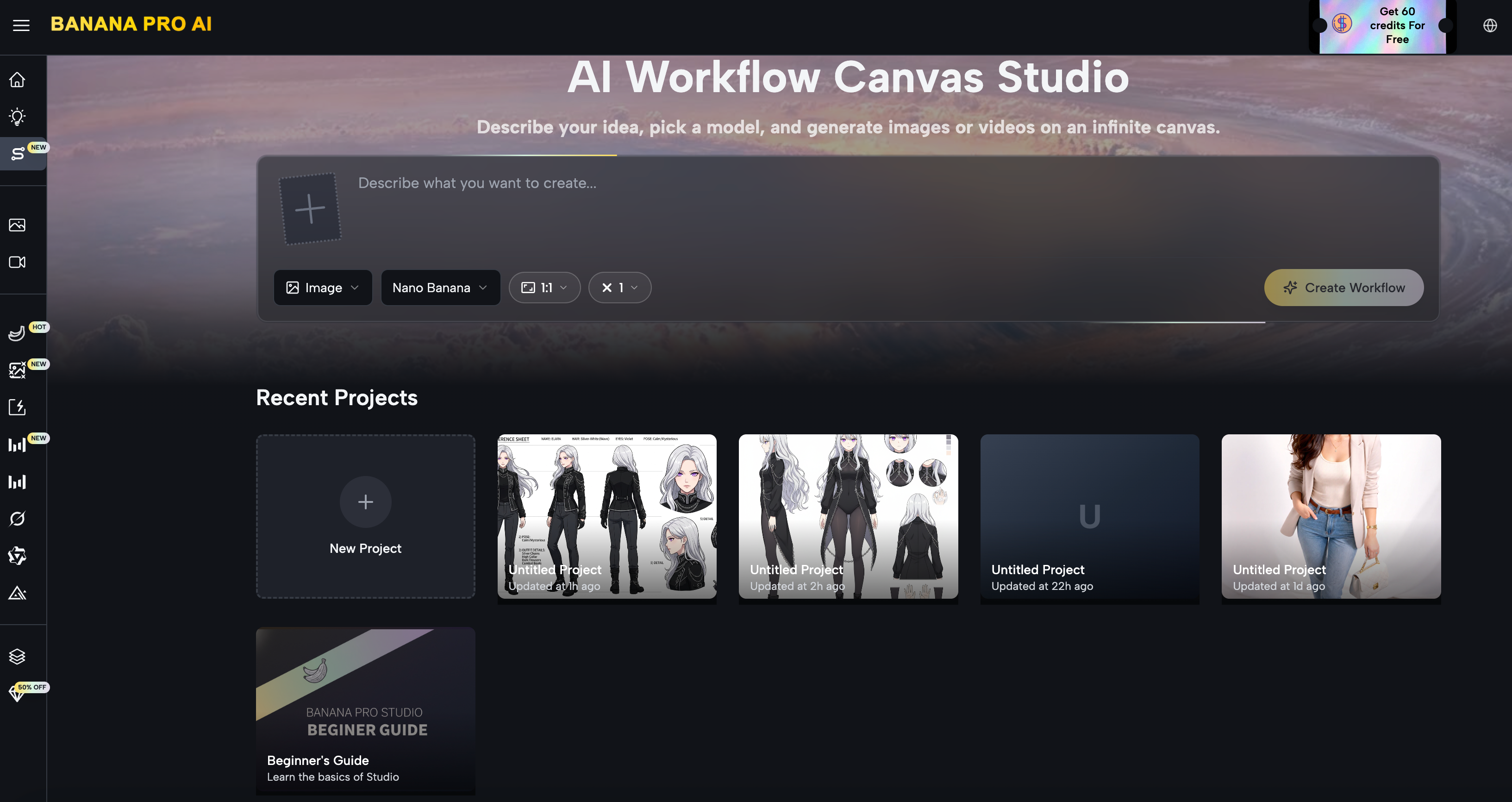
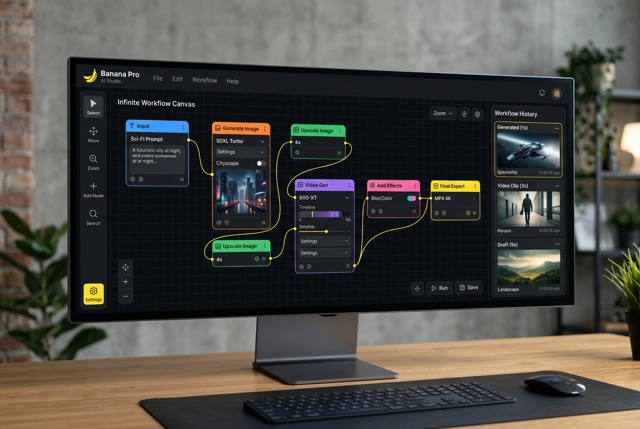
Banana Pro AI Studio is a free visual workflow environment that lives inside the Banana Pro AI platform, built around an infinite, zoomable canvas where every generation step appears as a node.
Instead of running isolated prompts, you design end‑to‑end pipelines for image and video generation by wiring together Text, Image, Video, and Upload nodes.
Under the hood, Studio is essentially a visual layer over Banana Pro AI’s multi‑model image generator, video generator, and canvas workflow system.
If you already use Banana Pro AI for text‑to‑image, image‑to‑image, or video, Studio lets you orchestrate those capabilities in a more systematic way.
Core Workflow: 5 Steps on the Infinite Canvas
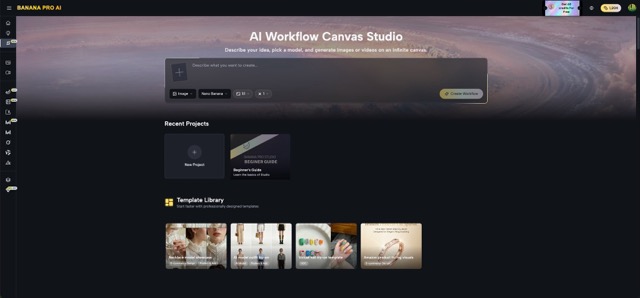
Banana Pro AI Studio’s UX is organized around a five‑step flow that mirrors how professional creative pipelines are usually built.
1. Project Creation and Canvas Boot
You start on a Studio dashboard where each project opens into its own infinite canvas workspace.
Every node, connection, and generation is auto‑saved in real time, with versions and history tracked per project, so it behaves more like a design file than a one‑off prompt session.
From a technical‑workflow perspective, this matters because you can safely build complex graphs without worrying about tab crashes or losing intermediate results.
The project dashboard also shows thumbnails and timestamps, which makes it viable for multi‑project use.
2. Node Types: Image, Video, Text, Upload
Nodes are added from a sidebar—either by clicking or dragging—choosing between Image, Video, Text prompt, or Upload asset nodes.
Each node type is specialized: Image nodes expose all supported image models and visual settings, Video nodes expose Veo‑based options, Text nodes encapsulate prompts, and Upload nodes act as entry points for external assets.
For images, Studio currently surfaces a wide range of models directly on the canvas, including:
- Nano Banana Pro and Nano Banana for general text‑to‑image and reference‑based generation
- Z‑Image Turbo for high‑speed text‑to‑image
- GPT‑4o Image for OpenAI’s latest model
- Flux Kontext Pro / Max, Qwen Image Edit, Grok Imagine, and Seedream for style transfer, editing, and artistic generation
You can set aspect ratios from 1:1 up to 21:9 and push resolution up to 4K, with up to 4 batch variations generated per request.
For video, nodes are tied to Veo 3 and Veo 3.1 (Premium and Basic variants).
They support text‑to‑video and image‑to‑video generation with 16:9 and 9:16 aspect ratios, making it straightforward to target both horizontal and vertical formats on the same canvas.
3. Node Connections and Pipeline Semantics
Connections are drawn by dragging from an output handle to an input handle.
Text nodes provide prompts, Image nodes feed reference images, and Video nodes can accept both textual prompts and incoming images as starting frames.
The system validates connections automatically and rejects incompatible links, so you cannot accidentally wire a video output into a text‑only input.
In practice, this allows you to construct pipelines such as:
- Text → Image (concept art or product hero)
- Image → Image (style transfer, variant generation, upscaling)
- Text → Video (directly generate motion from a prompt)
- Text → Image → Video (generate a keyframe then animate it)
- Upload → Image (transform or restyle existing brand assets)
This graph model makes dependencies explicit: when you change a prompt or upstream node, you can visually track which downstream assets are affected.
4. Generation, Preview, and Iteration
Each Image or Video node has a Generate action that runs the selected model with the node’s current configuration.
Results render directly onto the node on the canvas; for image nodes, batch generation lets you request up to four variations in a single call and view them side by side.
Key iteration features include:
- “Based on This” to spin up a new node derived from an existing result
- Switching models on the same node for quick A/B testing
- Regenerating with tweaked prompts without losing earlier outputs, since they’re preserved in history or as child nodes
This design encourages non‑destructive exploration: you can branch your workflow graph rather than overwriting a single output repeatedly.
5. Project Management, Export, and Reuse
Every generation is recorded in a History panel, split into image and video sections, and tied to its originating project.
You can bring historical outputs back onto the canvas as nodes, duplicate them, or fork new pipelines from previous work.
Exports are high‑resolution and watermark‑free, with full commercial usage rights across marketing, client work, e‑commerce, and print applications.
Combined with auto‑save, undo/redo, and the project dashboard, Studio behaves like a lightweight production environment rather than a toy demo.
Canvas UX: Interaction Model and Performance
From a technical‑UX standpoint, Studio tries to match expectations set by modern design and whiteboard tools.
The canvas is infinite and zoomable; panning is handled via drag or two‑finger gestures, and scroll or pinch controls zoom level.
Nodes can be freely positioned and scaled visually so you can alternate between local node details and a global overview of the pipeline.
Interaction features include:
- Right‑click context menus on both canvas and nodes (Add Node, Upload, Undo, Redo, Copy, Paste, Delete)
- Standard keyboard shortcuts such as Cmd/Ctrl+Z (undo), Cmd/Ctrl+C / V (copy/paste), and Delete/Backspace for removal
- Batch operations on multi‑variation image nodes and quick duplication for branching workflows
Crucially, there is a dual‑layer auto‑save approach: changes are saved locally first and then synced to the cloud, with conflict resolution favoring the most recent state and basic offline tolerance.
For anyone running larger canvases or working on unstable connections, this architecture significantly reduces the risk of state loss.
Model Access: Images, Video, and Multi‑Model Strategy
One of Studio’s main strengths is that it does not lock you into a single model family.
Instead, it exposes the same multi‑model capabilities that the core Banana Pro AI platform already provides for both images and videos.
On the image side, nodes give direct access to:
- General‑purpose models like Nano Banana Pro and Nano Banana
- Fast‑path generation via Z‑Image Turbo
- Third‑party models such as GPT‑4o Image
- Style‑ and edit‑oriented models including Flux Kontext Pro/Max, Qwen Image Edit, Grok Imagine, and Seedream
On the video side, Veo 3 and Veo 3.1 models are integrated into the same node framework with Premium and Basic tiers to balance quality and credit cost.
This lets you build pipelines where a single project mixes different models for experimentation while keeping everything contained in one graph.
Compared to juggling multiple standalone tools and APIs, Studio’s multi‑model design simplifies orchestration: one account, one UI, and a consistent node abstraction.
Free Tier, Credits, and Commercial Use
Banana Pro AI Studio is accessible under the standard Banana Pro AI account system: once you sign up, Studio is unlocked without an extra paywall.
Free accounts receive daily credits usable across image and video models, including Studio’s node‑based workflows.
Feature‑wise, the free tier includes:
- Full access to the infinite canvas and node system
- All supported image models and Veo 3 / 3.1 video models
- Unlimited projects with automatic saving and version tracking
- Batch generation, high‑resolution exports, and no watermarks
Commercial usage is allowed for both images and videos generated in Studio, covering marketing, client work, e‑commerce, print, and more.
Paid plans primarily add more credits and higher‑priority processing for heavy users, but the baseline feature set is already production‑capable.
Where Studio Fits in the Banana Pro AI Ecosystem
From a technical‑workflow perspective, Studio is not a replacement for Banana Pro AI’s classic single‑prompt interfaces—it is a higher‑level orchestration layer.
You can still go to the main Banana Pro AI image or video pages for quick, one‑off generations, especially when you do not need pipeline reuse.
Studio becomes compelling when:
- You are running multi‑step processes, such as text → product shot → styled variant → video
- You need visual traceability for iterations and client review
- You want to mix multiple models in one project while preserving a reproducible graph
Because Studio sits inside the same platform, creators can start with simple text‑to‑image on the Banana Pro AI homepage and gradually move into full visual workflows as their projects become more complex.
For teams or power users, that progression—from single nodes to full graphs—may be the most important feature of all.
Final Thoughts
Banana Pro AI Studio sits between simple one‑shot generators and heavy enterprise workflow tools: it gives you a visual, node‑based canvas without asking you to learn a full-blown MLOps platform.
If your current process involves jumping between multiple apps to go from text to image to video, Studio turns that into a single, reproducible graph where every step is visible and editable.
For casual users, the classic Banana Pro AI interfaces are still the fastest way to get a single image or clip from a prompt.
But once you find yourself reusing the same prompts, models, and assets across projects, moving that logic into Studio is an easy win for consistency, client review, and long‑term maintainability.
If you want to see how this feels in practice, the quickest way is to create a free Banana Pro AI account, open Studio, and build a tiny Text → Image → Video pipeline for your next product or content idea.
Most people realize after that first graph that it is not just a different UI—it is a different way of thinking about how their AI workflows scale.