Banana Pro AI Studio: The Free Visual AI Workflow Canvas for Images & Videos
Learn how to build multi-step AI creative pipelines — from character design to animated video — using Banana Pro AI Studio's drag-and-drop canvas, 9+ AI models, and "Based on This" scene chaining.
What Is Banana Pro AI Studio?
Banana Pro AI Studio is a free, no-code visual workflow canvas that lets you build multi-step AI creation pipelines — from text prompts all the way to cinematic videos — entirely through a drag-and-drop interface. No coding required, no complicated setup, and no watermarks.
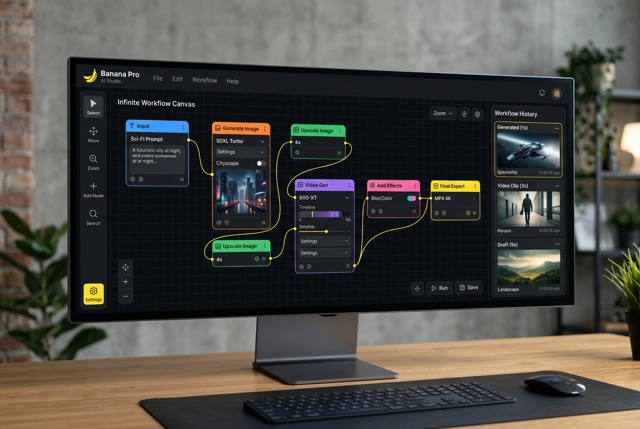
Think of it as an infinite whiteboard where every creative task becomes a connected node. You write a prompt, generate an image, refine it, pass it into a video generator, and watch your story come to life — all inside one unified canvas that auto-saves every step of the way.
Whether you're a solo creator, a content team, or a brand designer, Banana Pro AI Studio transforms complex AI workflows into a visual, intuitive, and fully repeatable creative system.
Features of Banana Pro AI Studio
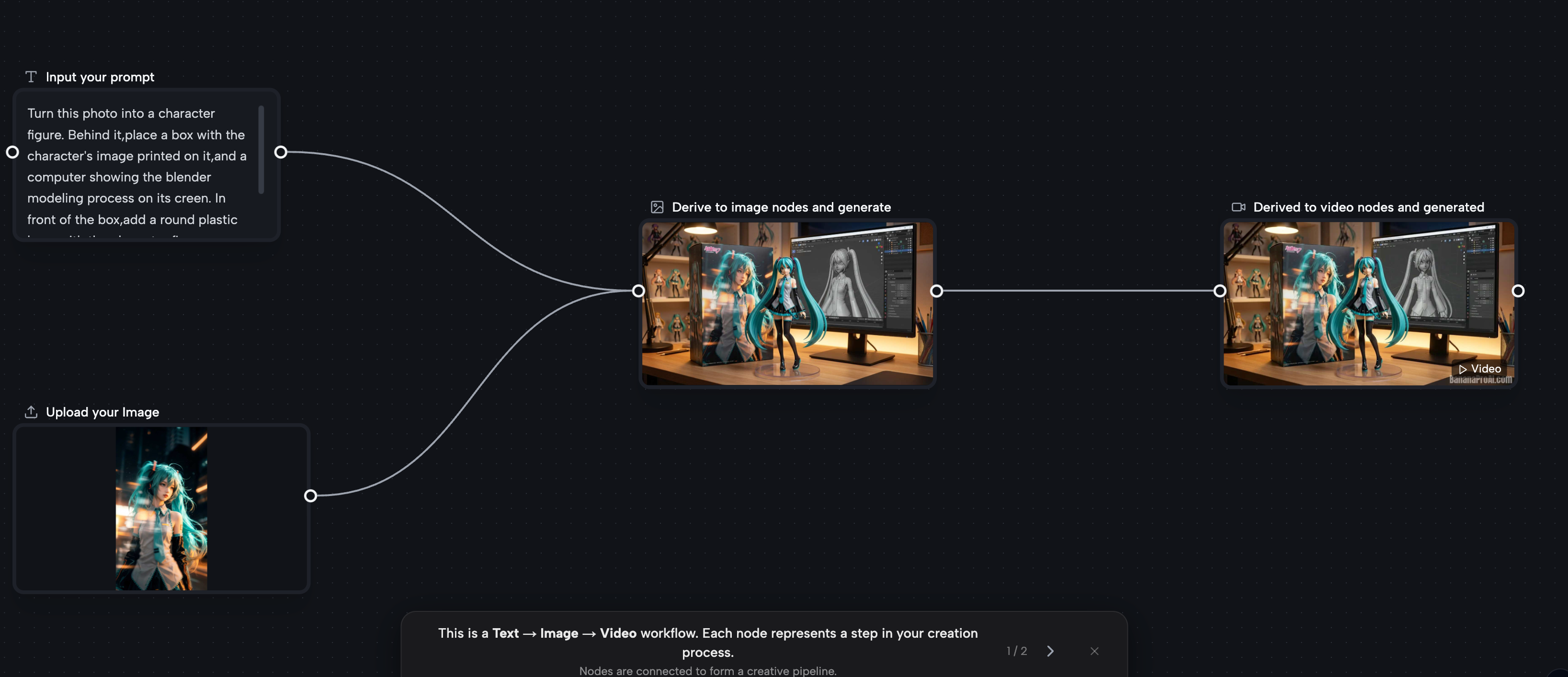
Infinite Visual Canvas
Pan, zoom, and arrange your workflow freely across an unlimited canvas. See your
entire creative pipeline at a glance — from character design to final video output
— without losing track of a single node.
4 Core Node Types
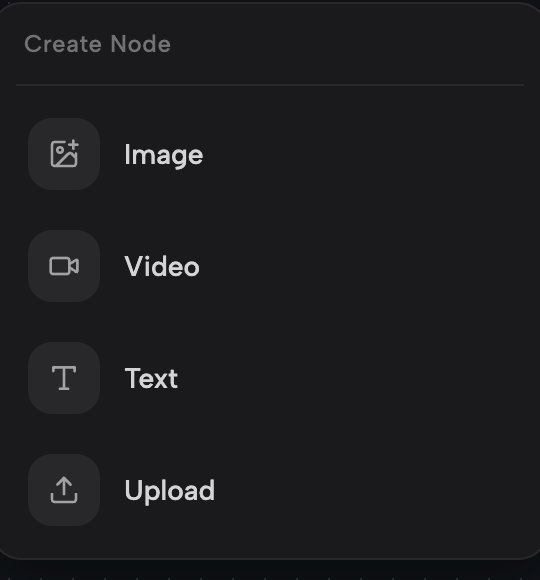
The entire studio is built around four powerful building blocks:
- Text Node — Write and store your prompts as reusable inputs that feed into any downstream node
- Image Node — Generate images using 9+ top-tier AI models including Nano Banana Pro, GPT-4o Image, Flux Kontext Pro/Max, Seedream, Qwen Image Edit, Grok Imagine, and Z-Image Turbo
- Video Node — Convert your images into dynamic video clips using Veo 3, Veo 3.1 Premium, and Seedance 1.5 Pro with support for both 16:9 landscape and 9:16 portrait formats
- Upload Node — Import your own images as reference anchors for character consistency, style transfer, or layout control
Batch Generation & A/B Testing
Generate up to 4 image variations simultaneously within a single node. Compare results side-by-side and select the best output before passing it downstream — no re-generation wasted.
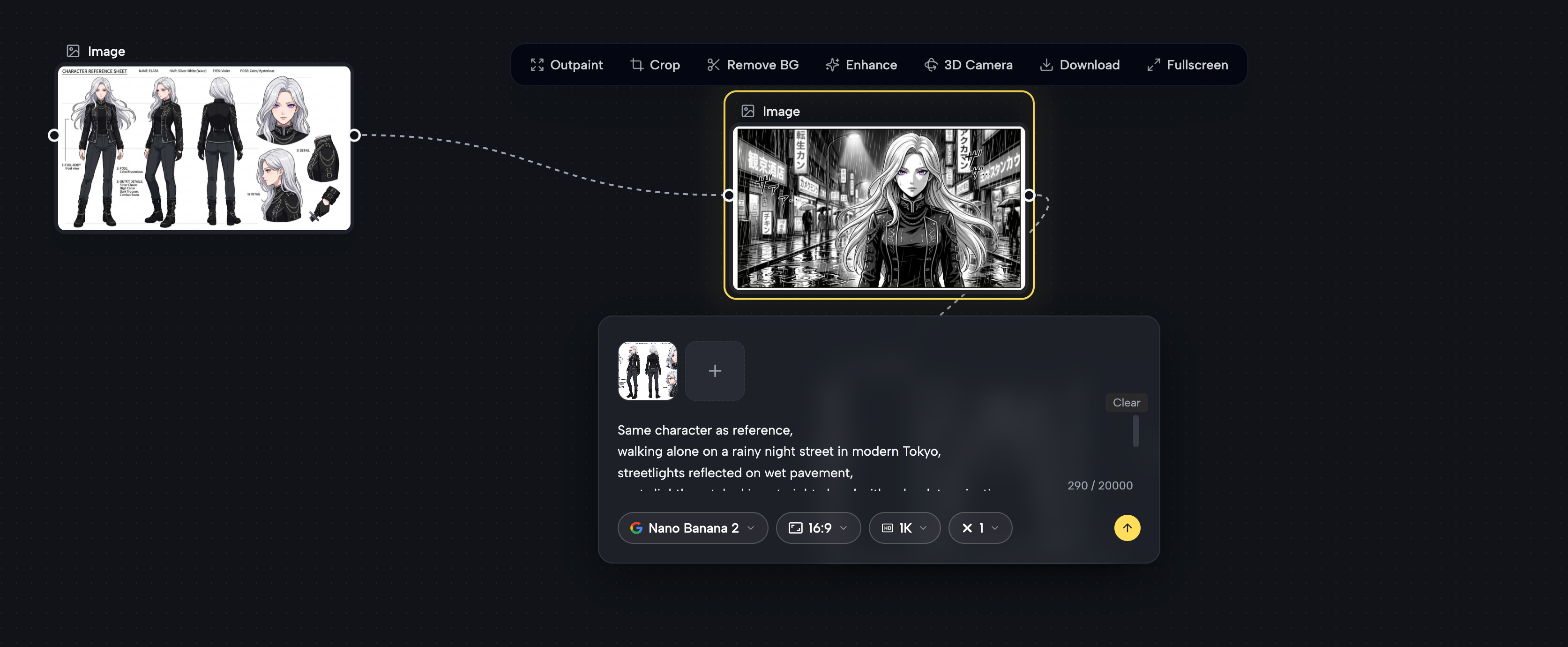
"Based on This" Chaining
Right-click any generated image and select "Based on This" to instantly create
a child node that inherits the parent image as a reference. This is the key to
maintaining visual and character consistency across multiple scenes.
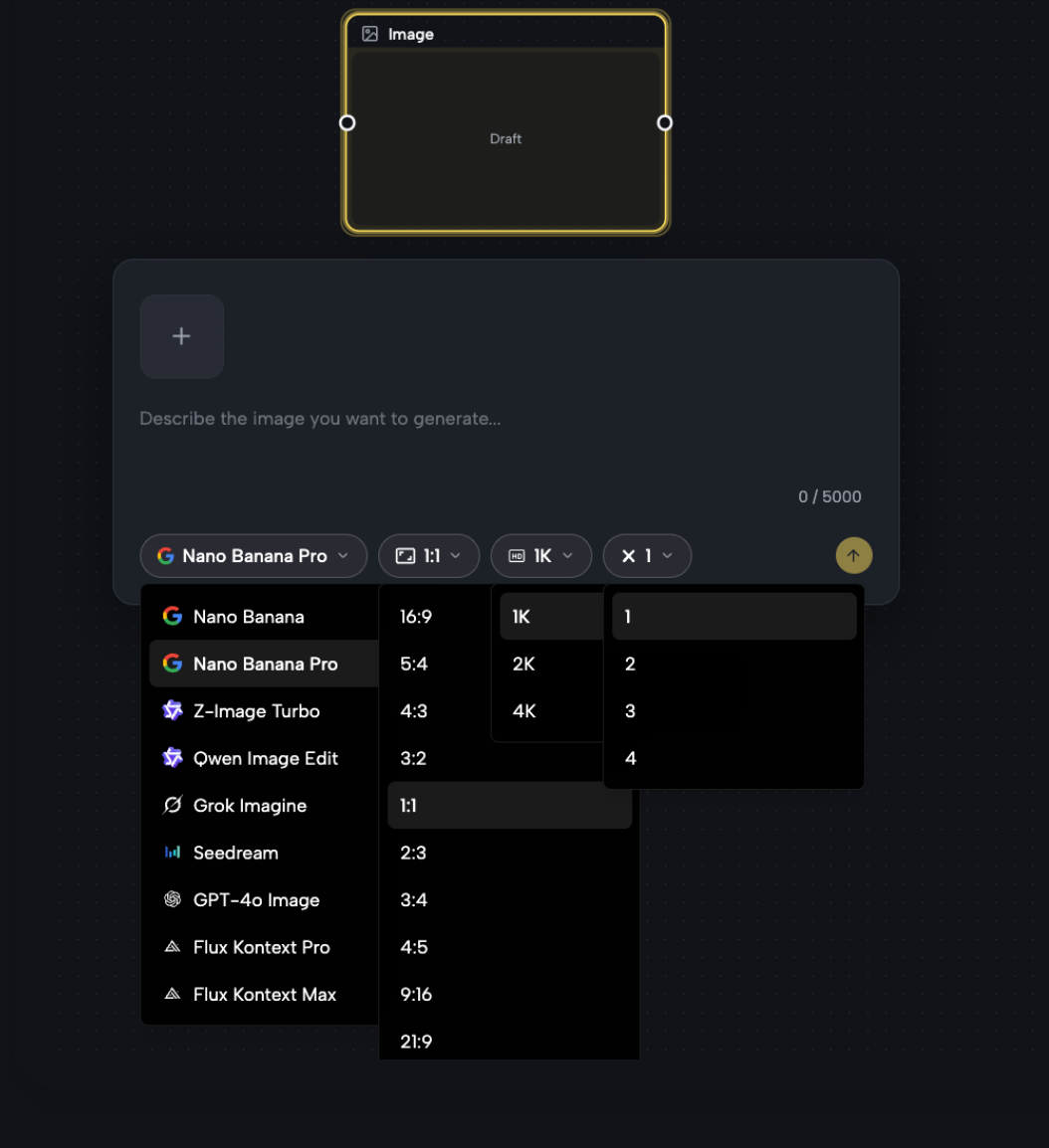
9+ AI Models in One Place
Switch between image models (Nano Banana Pro, Flux Kontext, GPT-4o Image, and more)
or video models (Veo 3, Seedance 1.5 Pro) within the same project. Test which model
performs best for your specific style without leaving the canvas.
Dual Auto-Save
Your work is saved locally first, then synced to the cloud. Even if your internet connection drops mid-session, nothing is lost.
Free Export — No Watermark, Full Commercial Rights
All outputs — including 4K resolution images and HD videos — export watermark-free with full commercial usage rights. No hidden fees, no locked features.
How to Use Banana Pro AI Studio
Step 1: Open the Canvas & Create a New Project
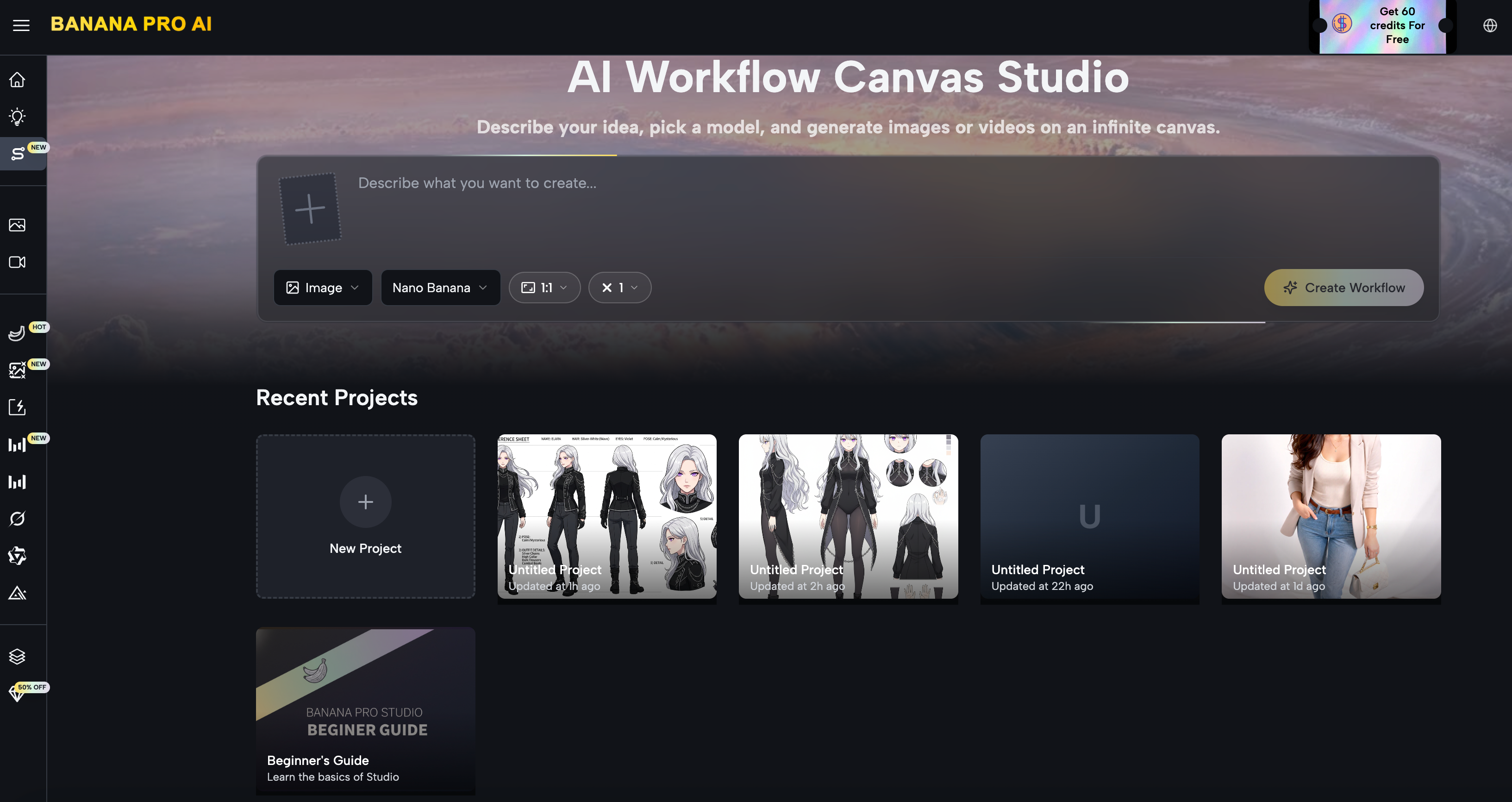
Go to Banana Pro AI Studio → Click "New Project" → Your infinite canvas opens instantly. No sign-up friction — start creating right away.
Step 2: Add Your First Node
Click any icon in the left sidebar, or right-click anywhere on the canvas and select "Add Node". Choose from Text, Image, Video, or Upload depending on your starting point.
Step 3: Write Your Prompt (Text Node)
Add a Text node and write your creative brief — a character description, a scene setting, or a style directive. This node acts as the shared prompt source for all connected downstream nodes.
Step 4: Generate Images (Image Node)
Connect your Text node to an Image node. Select your preferred model (e.g., Nano Banana Pro for anime/manga style), set the aspect ratio and resolution, and click Generate. Use Batch ×4 to produce multiple versions at once and pick the best one.
Step 5: Chain Scenes with "Based on This"
Right-click your chosen image → "Based on This" → A new Image node is created with the selected image locked as a visual reference. Write a new scene prompt in this node. Repeat to build a full storyboard while keeping your character's appearance consistent.
Step 6: Generate Video (Video Node)
Connect your final scene image to a Video node. Set the First Frame (and optionally a Last Frame for transition control), write a motion prompt describing camera movement and character action, then choose your model (Seedance 1.5 Pro or Veo 3), duration, and FPS. Hit Generate.
Step 7: Review, Iterate, and Export
All outputs appear directly on the node. Not happy with a result? Tweak the prompt and regenerate — only that node updates, leaving the rest of your workflow intact. When ready, export all assets in high resolution, watermark-free.
Example: Creating a Manga-Style Urban Fantasy Series
Here's a real workflow built entirely inside Banana Pro AI Studio — a 5-scene manga comic featuring a silver-haired heroine across a complete story arc, with full character consistency maintained throughout.
The Character
The story centers on a young woman with long silver-white hair, violet eyes, pale skin, and a black high-collar jacket with silver chain details — calm, mysterious, and powerful.
The Workflow Built on Canvas
Node 1 — Text (Character Master Prompt)
A detailed character description was written once in a Text node and wired to all
downstream Image nodes, ensuring every scene started from the same visual DNA.
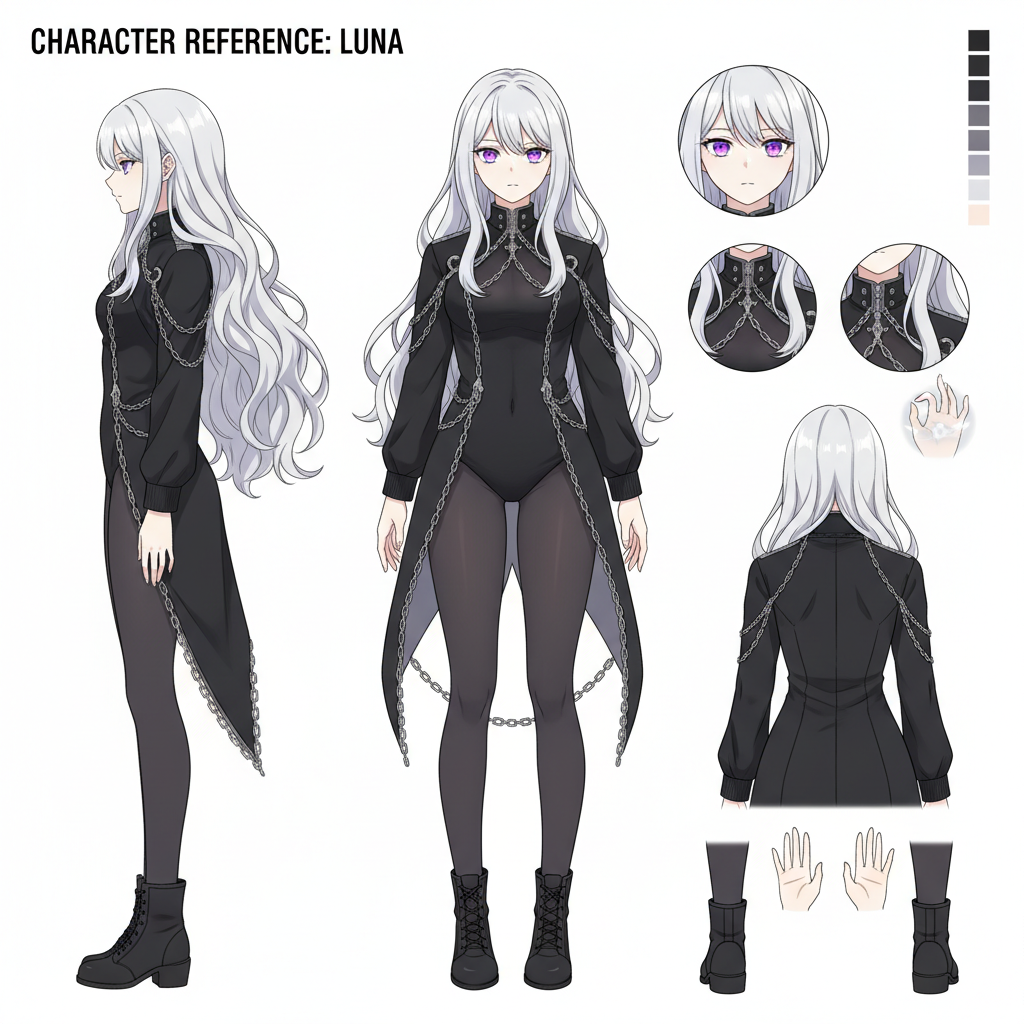
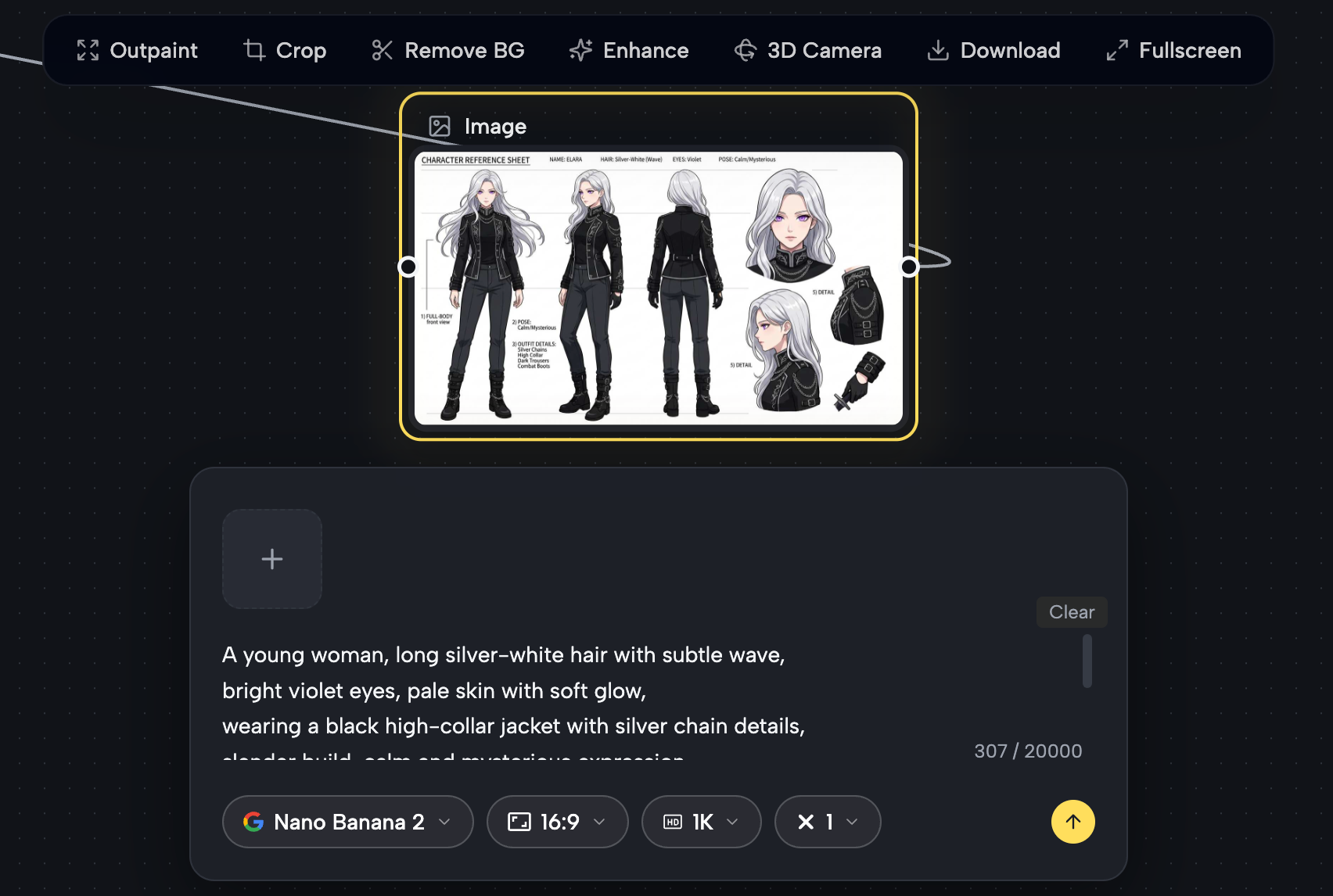 Node 2 — Image (Character Reference Sheet)
Using Nano Banana Pro, a full character reference sheet was generated showing front, side, and three-quarter views — the visual "lock" for the entire series.
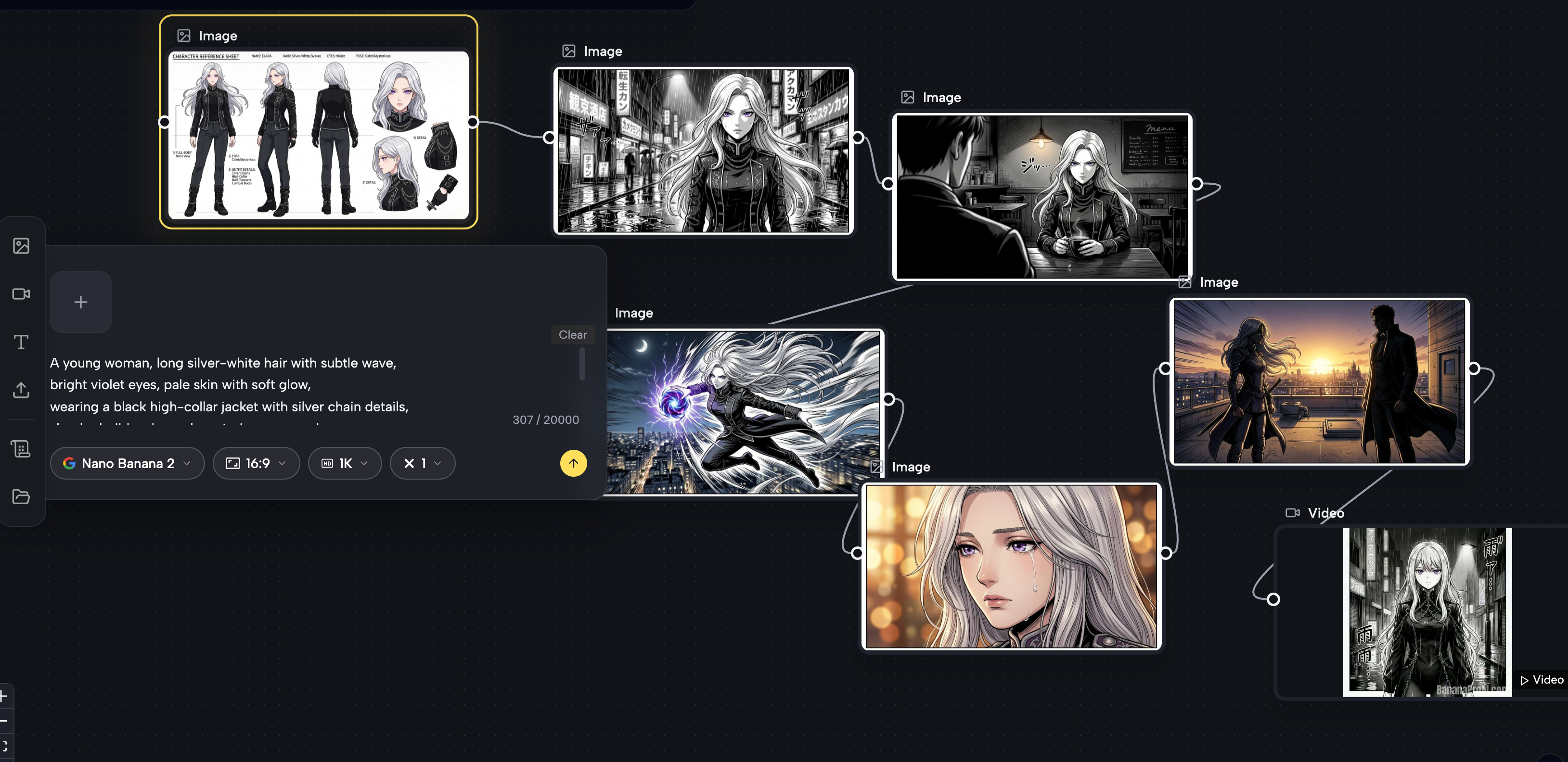
Nodes 3–6 — Four Scene Images (via "Based on This" Chaining)
Each scene was derived from the previous node using the "Based on This" feature,
preserving hair color, facial features, clothing, and style across all panels:
- Scene 1 · Rainy Tokyo Street — Monochrome manga panel, dramatic rain reflections, close-up upper body
- Scene 2 · Café Confrontation — Heavy shadow contrast, over-the-shoulder perspective, tense atmosphere
- Scene 3 · Action Burst — Dynamic mid-air leap, glowing energy orb, city skyline, motion blur
- Scene 4 · Emotional Close-Up — Single tear, soft bokeh, warm window light, delicate line work
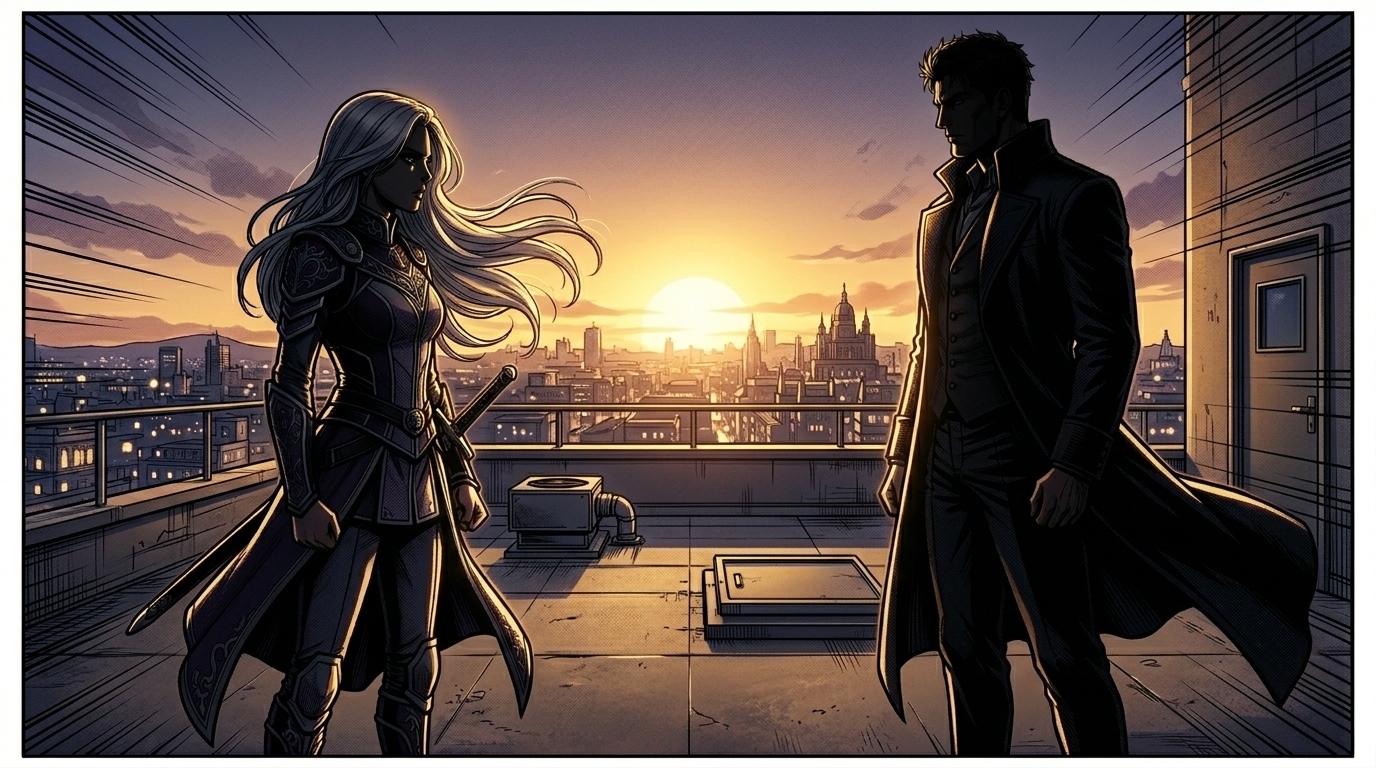
 Node 5 — Dual Character Scene
A fifth Image node introduced a second character (tall, dark-haired man in a dark
coat) for a rooftop confrontation scene at golden hour — both characters rendered
consistently in the same manga style.
Node 6 — Video (Seedance 1.5 Pro)
The rooftop duo image was connected to a Video node as the Last Frame, with the
rainy street image set as the First Frame. A 5-second cinematic transition was
generated with this motion prompt:
"The camera slowly pulls back and tilts upward as the rain fades — the scene dissolves through time, transitioning to a golden-hour rooftop where she now stands facing a tall dark-haired man, both silhouetted against a blazing sunset skyline."
The result: a complete 5-panel manga storyboard + animated video sequence, all built inside a single Banana Pro AI Studio canvas in under an hour.
Why Choose Banana Pro AI Studio?
Unlike single-purpose AI image generators, Banana Pro AI Studio gives you the full creative pipeline — plan, generate, refine, and animate — inside one persistent, shareable workspace. No juggling between tabs. No losing your creative history.
One Canvas, Every Tool You Need
An infinite drag-and-drop canvas that connects Text, Image, and Video nodes in any order you choose. Switch freely between 9+ image models and 4 video models — including Nano Banana Pro, Flux Kontext, Veo 3, and Seedance 1.5 Pro — all within a single project, without ever leaving the page.
Character Consistency Across Every Scene
The "Based on This" chaining feature automatically locks your reference image into every child node. Your character's face, outfit, and style stay consistent from Scene 1 to the end Scene — no manual re-uploading, no drift, no guesswork.
Faster Iteration with Batch Generation
Generate up to 4 variations per node at once, compare them side-by-side, and send only the best downstream. Combine that with node-level regeneration — tweak one prompt without touching the rest of your workflow — and you can go from rough idea to polished output in minutes.
Free, Watermark-Free & Commercially Ready
The full canvas, all models, batch generation, dual auto-save, and 4K watermark-free export are all included in the free plan — with full commercial usage rights. No credit card, no hidden tiers, no creative limits.
Frequently Asked Questions
Is Banana Pro AI Studio really free?
Yes — the core canvas, all 9+ image models, all video models, batch generation, and
watermark-free commercial export are all free. Paid plans only add higher daily
credit limits and priority queue access.
Do I need any technical skills to use it?
No. The drag-and-drop interface is designed for creators of all skill levels. If you
can write a sentence and click a button, you can build a workflow.
How does character consistency work across scenes?
By using the "Based on This" feature, each new Image node inherits the previous
image as a visual reference. Combined with a consistent character description in your
Text node, this keeps your character's appearance stable across every panel.
Can I use the generated content commercially?
Yes. All outputs from Banana Pro AI Studio are fully licensed for commercial use —
including client work, marketing materials, social media, and print.
What video models are supported?
Currently supported video models include Veo 3, Veo 3.1 Premium, Veo 3.1 Basic,
and Seedance 1.5 Pro, with support for First Frame, Last Frame, and motion
prompt inputs.
Can I share my workflow with others?
Yes — each project generates a shareable studio link that others can view or remix directly
in their own canvas.
What resolutions are supported?
Images can be exported up to 4K resolution. Video supports up to 720p in
standard plans, with higher resolutions available on premium.
Start Building Your AI Workflow — Free
Whether you're creating a manga series, building a brand visual system, producing social content, or experimenting with AI storytelling, Banana Pro AI Studio gives you the tools to bring any idea to life — one connected node at a time.
👉 Open the Studio Canvas — It's Free →
No credit card. No watermarks. No limits on creativity.
Have a workflow idea in mind? Start with a Text node, describe your vision, and let the canvas do the rest.