Turn Your Ideas Into Images and Videos with an AI Canvas — The Complete Guide to Banana Pro AI Studio

Have you ever had a crystal-clear vision in your head but had no idea how to bring it to life? Or found yourself jumping between multiple AI tools — downloading, uploading, downloading again — until you just gave up? That's exactly what this feature is built to solve.
What Is Banana Pro AI Workflow Canvas?
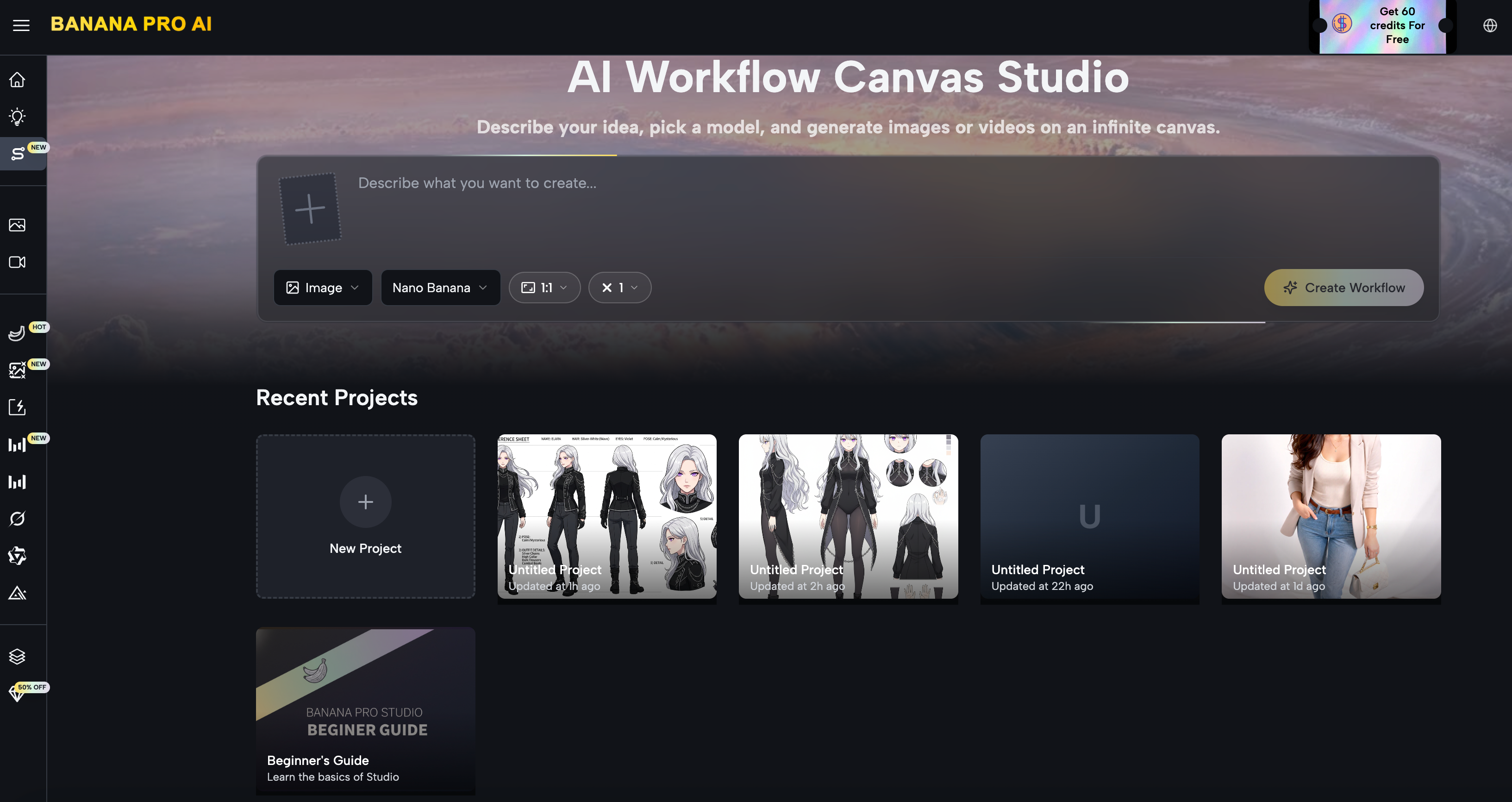
*Banana Pro AI Studio* is a free visual AI workflow canvas.
Think of it as an infinitely large whiteboard — on this board, you place different AI functions as "nodes," connect them with lines, and build a complete pipeline from creative idea to finished product. No coding required. No technical knowledge needed. Just drag, drop, and create.
Every project is auto-saved in real time, and all generated images and videos are stored in your history panel, ready to reuse at any moment.
The Key Functions of AI Workflow Canvas
The AI Workflow Canvas revolves around four node types. These are the fundamental building blocks of every workflow:
| Node | Function |
|---|---|
| Text | Enter your creative description as a generation prompt |
| Image | Generate images from text or reference images using AI models |
| Video | Generate short AI videos from text or images |
| Upload | Import your existing assets — product photos, brand images, portraits |
These four nodes can be freely combined to form four primary workflow pipelines.
The Examples of AI Workflow Canvas
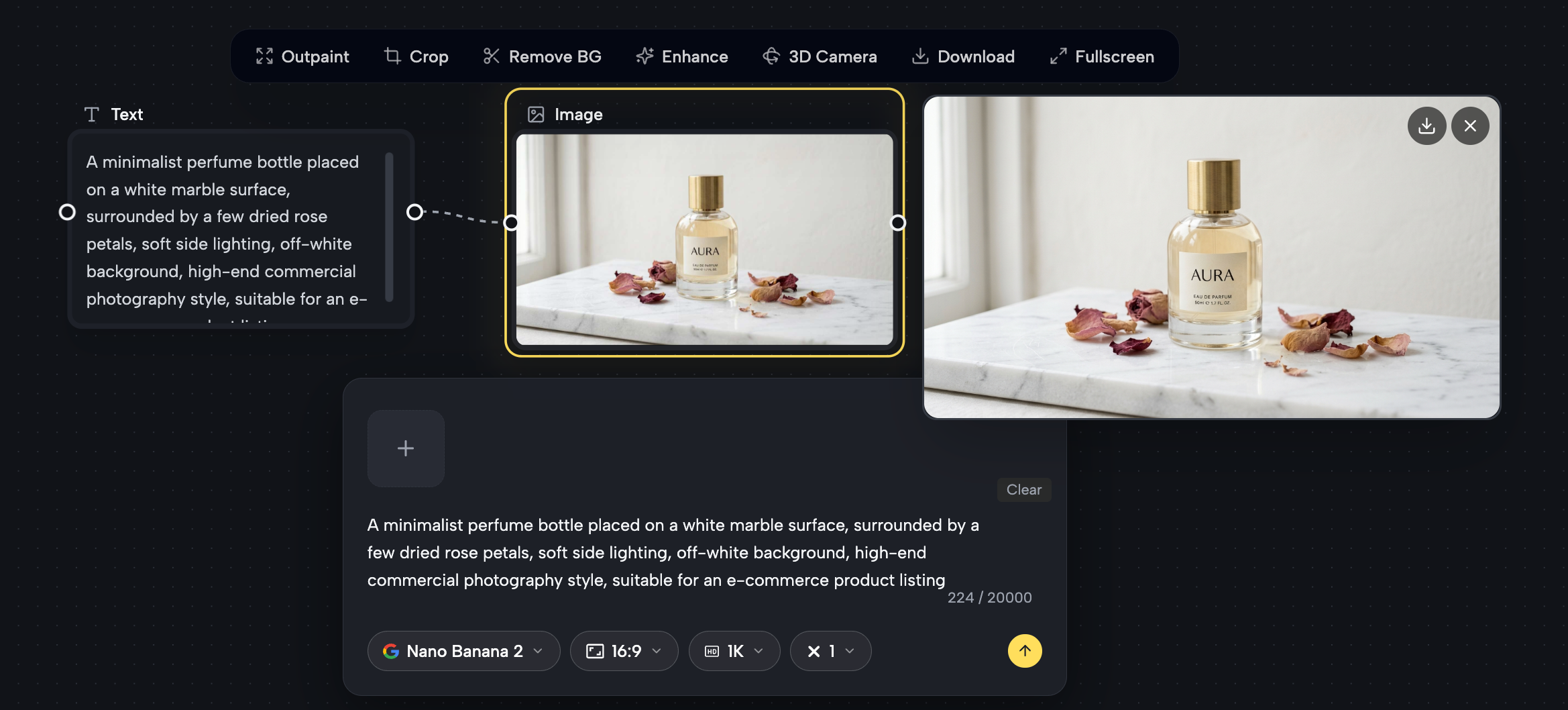
Workflow 1: Text → Image
In one line: Start from scratch — turn a written description directly into an image.
Best for: Anyone without existing assets who only has an idea in mind. E-commerce sellers, content creators, game designers, and anyone who needs to produce visuals fast.
Supported models: Nano Banana Pro, GPT-4o Image, Z-Image Turbo, Seedream, and 9+ more models. Supports aspect ratios from 1:1 to 21:9, up to 4K resolution, with up to 4 variants generated at once for side-by-side comparison.
Real-world example: E-commerce product hero image
"A minimalist perfume bottle placed on a white marble surface, surrounded by a few dried rose petals, soft side lighting, off-white background, high-end commercial photography style, suitable for an e-commerce product listing"
After generating, compare up to 4 different versions at once, pick your favorite direction, or use "Based on This" to branch into new variations.
Workflow 2: Image → Image
In one line: Already have a reference image? Transform its style, swap the background, or generate multiple variants from it.
Best for: Designers refining drafts, brands refreshing visual styles, photographers generating multiple color-graded versions of a shot.
Supported models: Flux Kontext Pro & Max (style transfer), Qwen Image Edit (precise editing), Grok Imagine (creative variations).
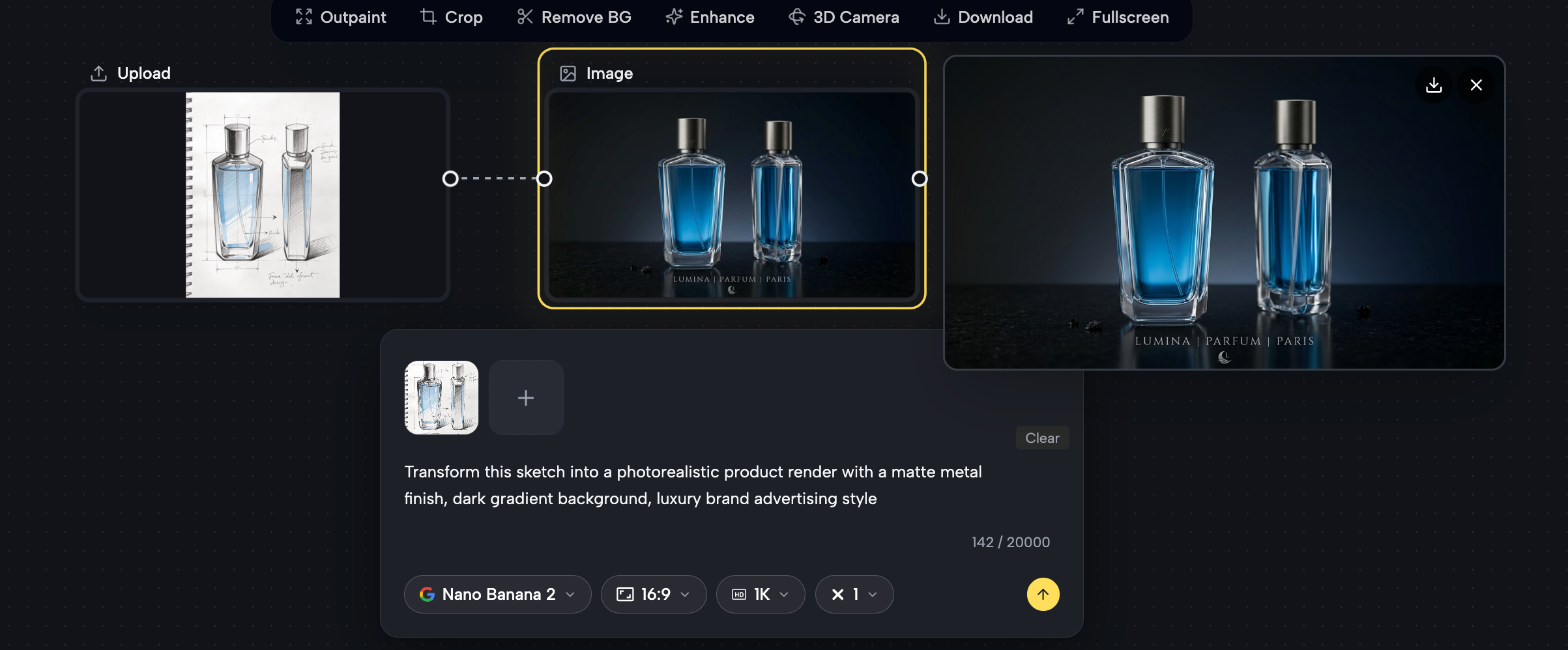
Real-world example: Product sketch → Polished product visual
Step 1: Upload a hand-drawn product sketch into an Image node
Step 2: Enter the following prompt: "Transform this sketch into a photorealistic product render with a matte metal finish, dark gradient background, luxury brand advertising style"
Step 3: Select image model and click Generate
Your rough sketch is instantly transformed into a polished, presentation-ready product visual — no reshooting needed.
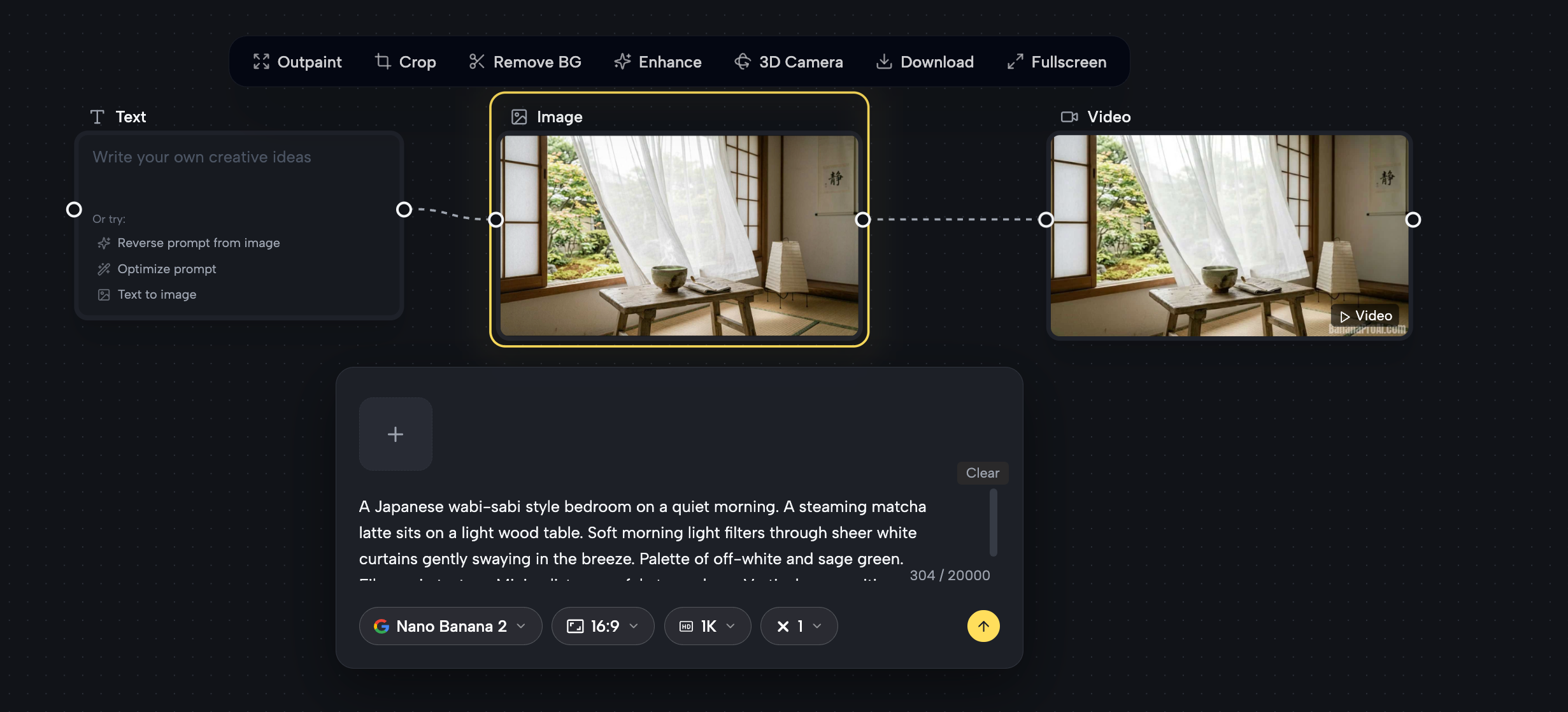
Workflow 3: Text → Image → Video
In one line: Generate a keyframe image from text, then animate it into a short video — all in one pipeline.
Best for: Content creators who need video without any footage; ad teams producing dynamic assets quickly; independent animators prototyping storyboards.
Supported video models: Veo 3.1 Premium / Basic, Veo 3 Premium / Basic. Supports both 16:9 landscape and 9:16 vertical formats.
Real-world example: Lifestyle aesthetic video for Xiaohongshu / Instagram Reels
Step 1: Enter a Text node:
"A Japanese wabi-sabi style bedroom on a quiet morning. A steaming matcha latte sits on a light wood table. Soft morning light filters through sheer white curtains gently swaying in the breeze. Palette of off-white and sage green. Film grain texture. Minimalist, peaceful atmosphere. Vertical composition."
Step 2: Connect the generated image to a Video node and enter:
"The sheer curtains sway softly, steam rises gently from the cup, morning light gradually brightens, camera slowly pushes forward, 8 seconds, calm and healing mood, 9:16 vertical"
Step 3: Select Veo 3.1 Premium and click Generate
From nothing to a polished, publish-ready short video — in minutes, with zero filming cost.
Workflow 4: Upload → Image
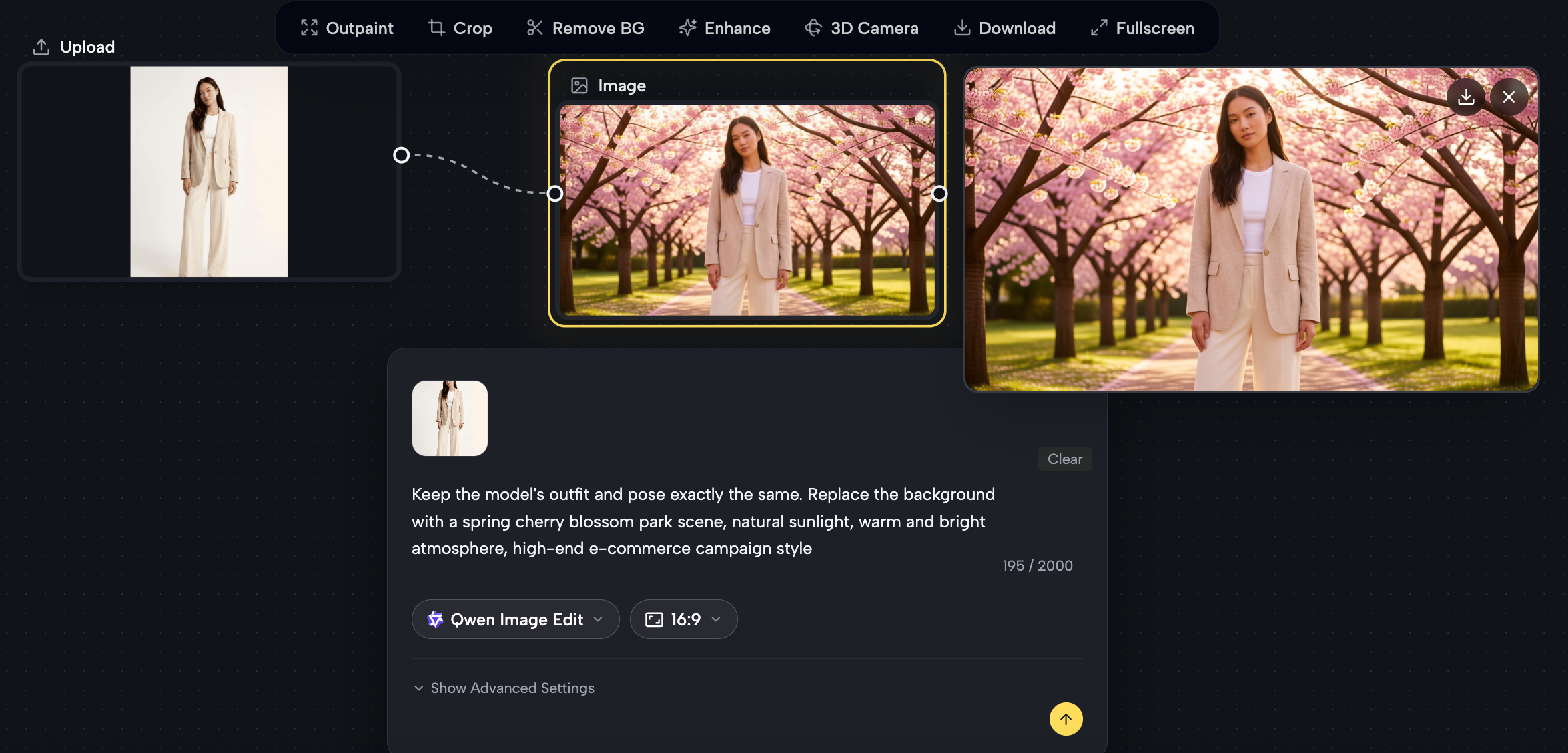
In one line: Upload your existing brand assets and use AI to transform them — swap backgrounds, change styles, or create new scene variations.
Best for: Fashion e-commerce brands replacing shoot backgrounds, beauty brands generating try-on visuals, marketing teams refreshing outdated creatives. All outputs are commercially licensed, watermark-free, and fully owned by you.
Real-world example 1: Fashion e-commerce background swap
Step 1: Upload a plain white studio model photo into an Upload node, connect to an Image node
Step 2: Enter the following prompt: "Keep the model's outfit and pose exactly the same. Replace the background with a spring cherry blossom park scene, natural sunlight, warm and bright atmosphere, high-end e-commerce campaign style"
Step 3: Select Qwen Image Edit and click Generate
No need to schedule outdoor shoots. Get model photos in multiple environments at a fraction of the cost.
Real-world example 2: Marketing team refreshes a Banner
Upload an old campaign banner → Enter: "Keep the brand logo and hero product. Upgrade the overall visual style to a 2025 summer neon gradient aesthetic, suitable for a major sales event promotion" → Select Grok Imagine and generate
Find Your Workflow
The real power of Banana Pro AI Studio isn't any single AI model — it's the ability to chain multiple models and multiple steps into one visual, repeatable creative system.
- Starting from nothing? → Use Text → Image
- Have a reference image to build on? → Use Image → Image
- Need video content but have no footage? → Use Text → Image → Video
- Have existing brand assets to repurpose? → Use Upload → Image
Whether you're a content creator, designer, e-commerce seller, or marketing team, there's a workflow here that fits exactly where you are. Free to use. No credit card required. Open the canvas and start creating.