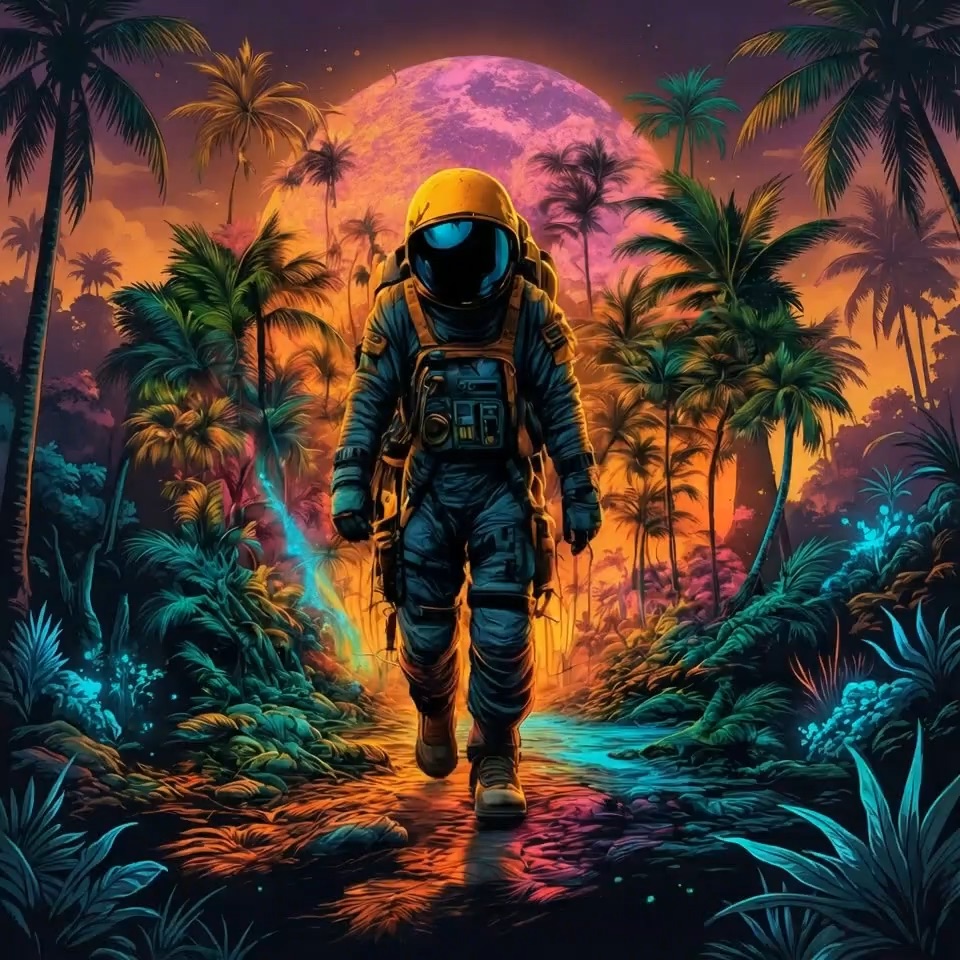
AI Workflow Canvas Studio
Describe your idea, pick a model, and generate images or videos on an infinite canvas.
Recent Projects
Beginner's Guide
Learn the basics of Studio
Template Library
Start faster with professionally designed templates

Necklace model showcase
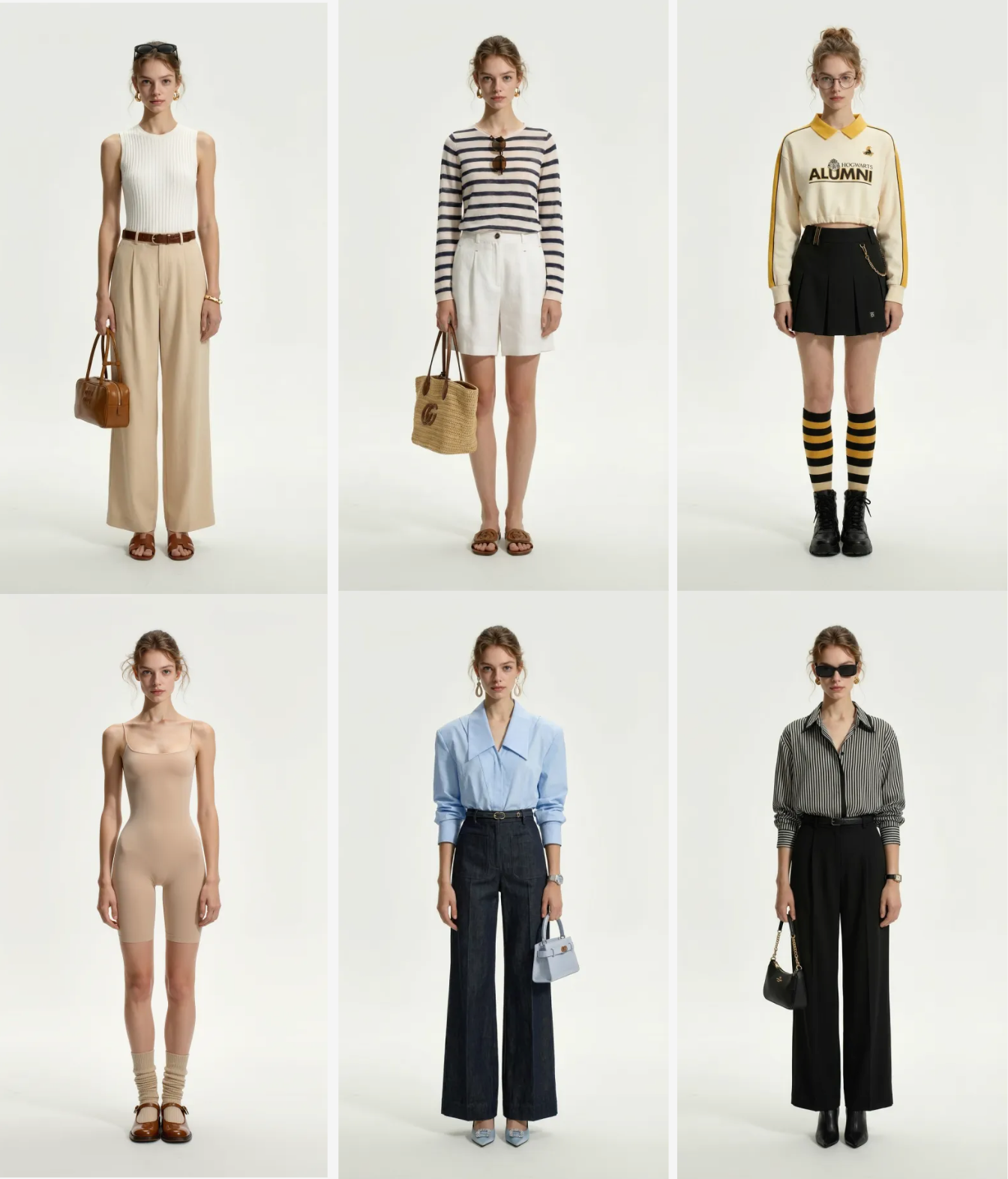
AI model outfit try-on
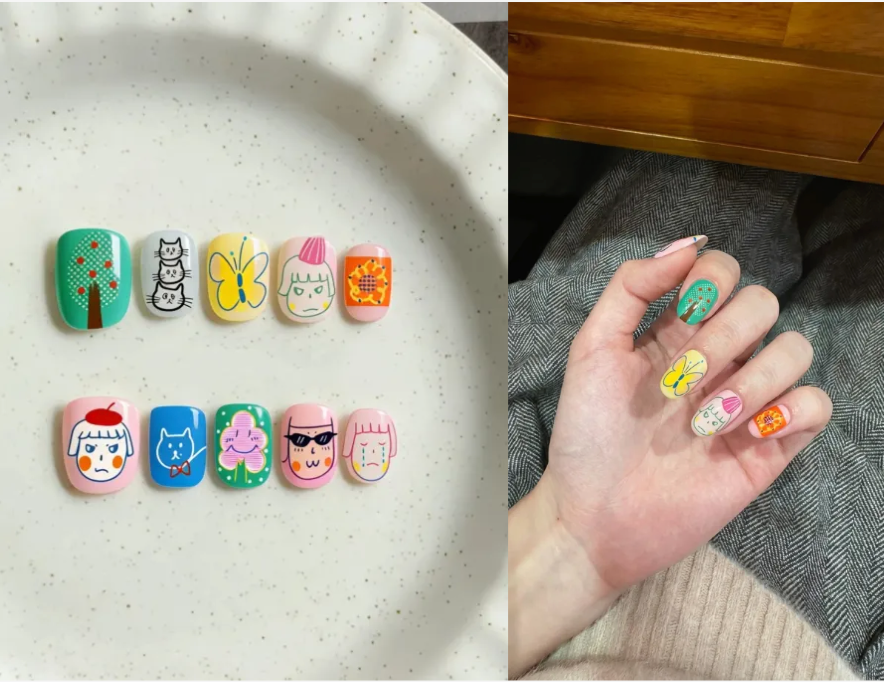
Virtual nail try-on template

Amazon product listing visuals
5 Simple Steps: From Idea to Stunning AI Creations on an Infinite Canvas
Banana Pro AI Studio transforms your creative process with a visual node-based workflow canvas. Generate professional AI images and videos, connect nodes to build creative pipelines, and iterate freely—all in one unified workspace. Sign up free to start creating today.
Create a New Project & Open the Canvas
Start by creating a new project from the Studio dashboard or use the quick-create form to describe your idea instantly. Each project opens an infinite canvas—your personal creative workspace where every node, connection, and generation is auto-saved in real time.

Add Nodes: Image, Video, Text, or Upload
Click or drag from the sidebar to add nodes onto the canvas. Choose from Image generation, Video generation, Text prompt, or Upload asset nodes. Each node type is purpose-built—image nodes support 9+ AI models (Nano Banana Pro, GPT-4o Image, Flux Kontext, and more), while video nodes power Veo 3 and Veo 3.1 generation.

Connect Nodes to Build Creative Workflows
Drag connections between nodes to establish dependencies. Feed a Text node's prompt into an Image node, or chain an Image output into a Video node as a reference frame. This node-based workflow lets you build multi-step creative pipelines visually—no coding, no complexity.

Generate, Preview & Iterate Instantly
Hit Generate on any node to produce AI images or videos in seconds. Preview results directly on the canvas. Not satisfied? Regenerate with tweaked prompts, try a different AI model, or use 'Based on This' to derive new variations. Batch generation lets you create multiple variations at once for rapid exploration.

Manage, Export & Continue Creating
Every generation is saved to your project history. Browse past creations in the History panel, add them back to the canvas, or export high-resolution outputs without watermarks. Use keyboard shortcuts for speed, undo/redo for confidence, and right-click context menus for quick actions—all designed for professional creative workflows.
All-in-One AI Creative Studio: Image & Video Generation on an Infinite Canvas
Banana Pro AI Studio combines the power of multiple AI generation models with an intuitive visual workflow canvas. Create images, generate videos, connect nodes into creative pipelines, and manage entire projects—all from a single, free workspace built for creators, designers, and teams.
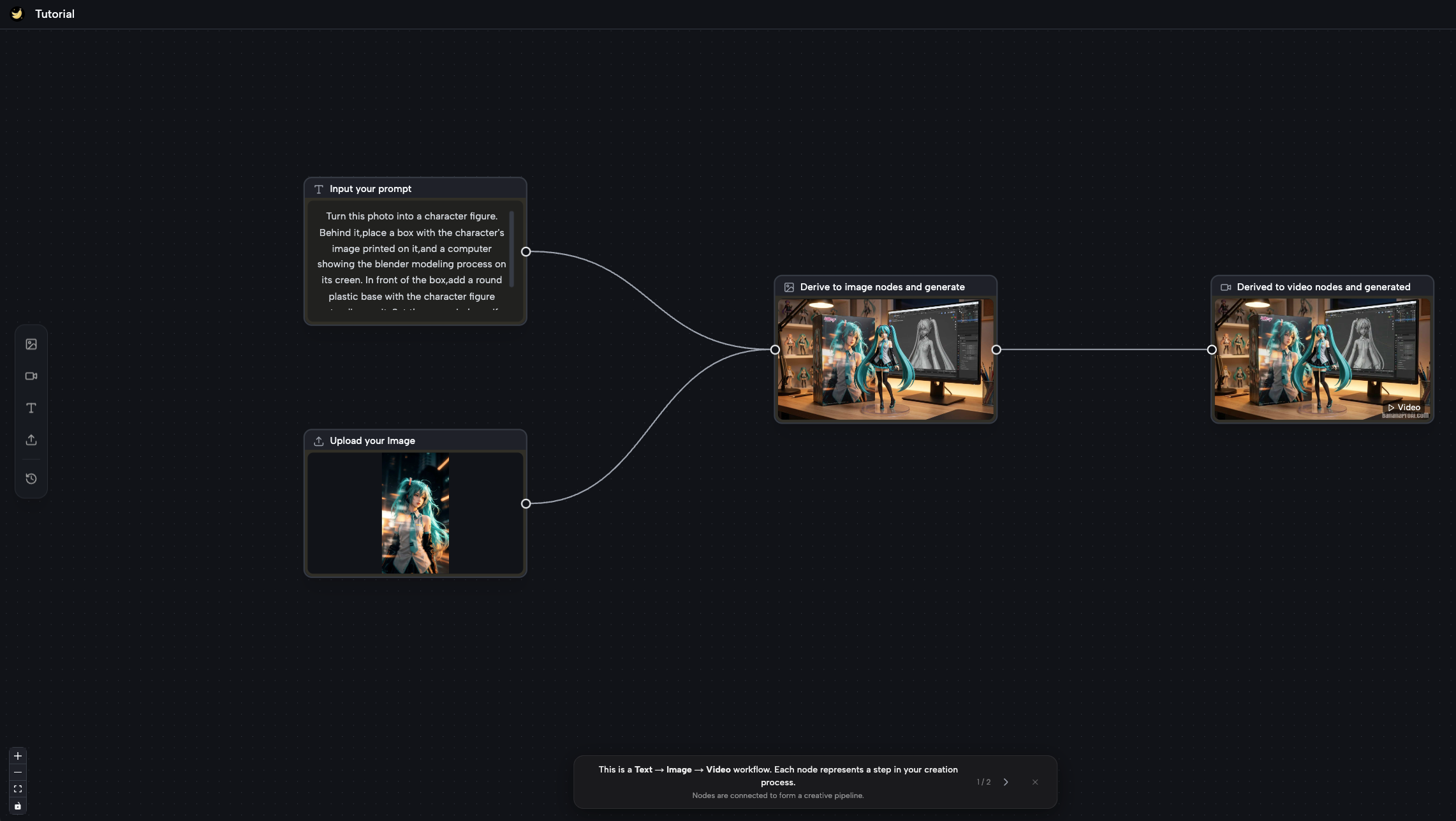
Infinite Canvas with Visual Node-Based Workflow
Work on an infinite, zoomable canvas where every creative asset lives as a node. Drag to position, connect to build workflows, and zoom in or out to see your full creative pipeline at a glance. The visual approach makes complex multi-step generation intuitive—no hidden menus, no linear constraints. Pan with two fingers, zoom with scroll, and use keyboard shortcuts like a pro.
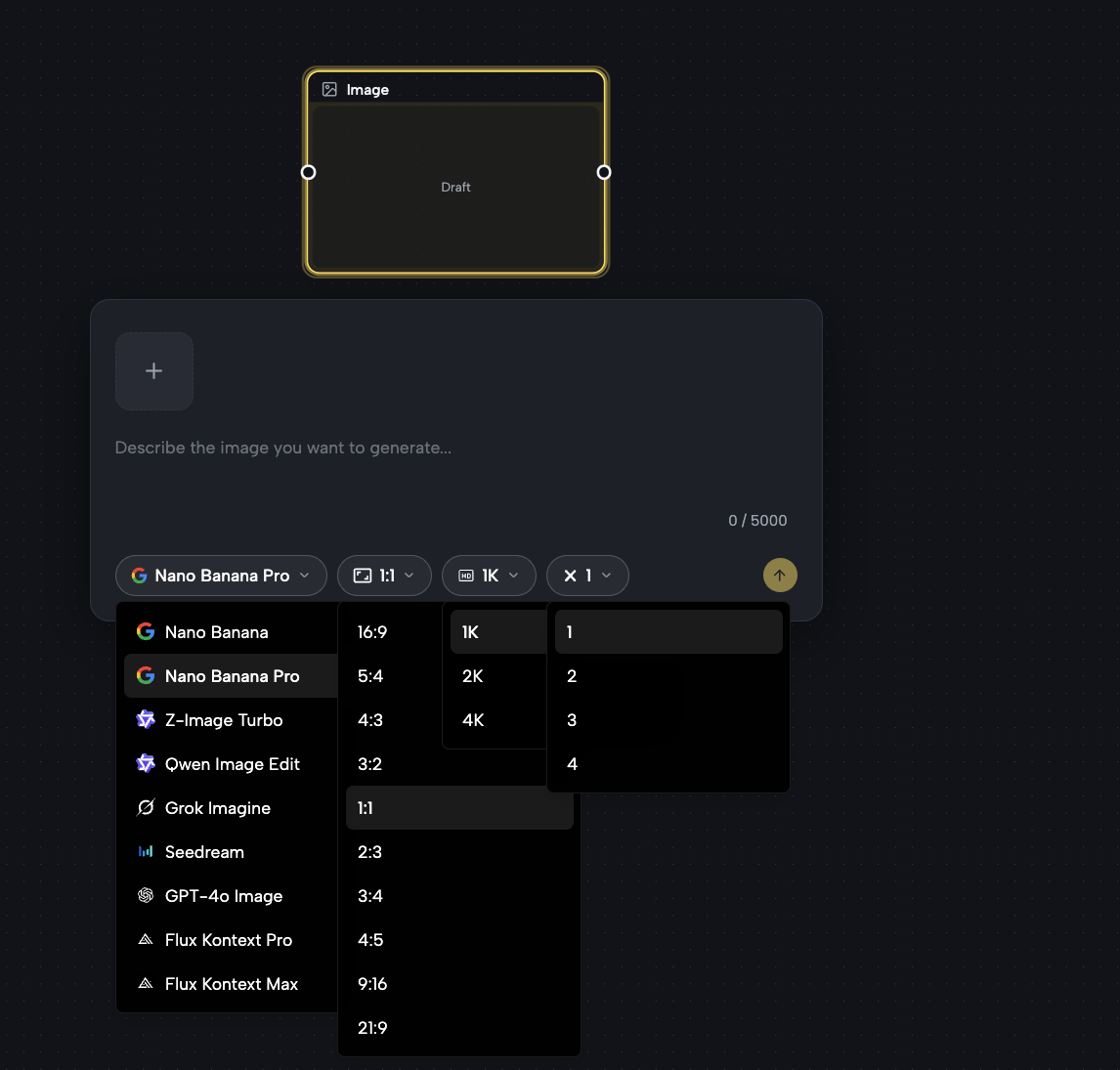
Multi-Model AI Image Generation
Access 9+ cutting-edge AI image models directly on the canvas. Generate from text prompts with Nano Banana Pro, Z-Image Turbo, Seedream, or GPT-4o Image. Upload reference images for style transfer with Flux Kontext Pro, Flux Kontext Max, Qwen Image Edit, and Grok Imagine. Choose aspect ratios from 1:1 to 21:9, set resolution up to 4K, and create up to 4 batch variations per generation.
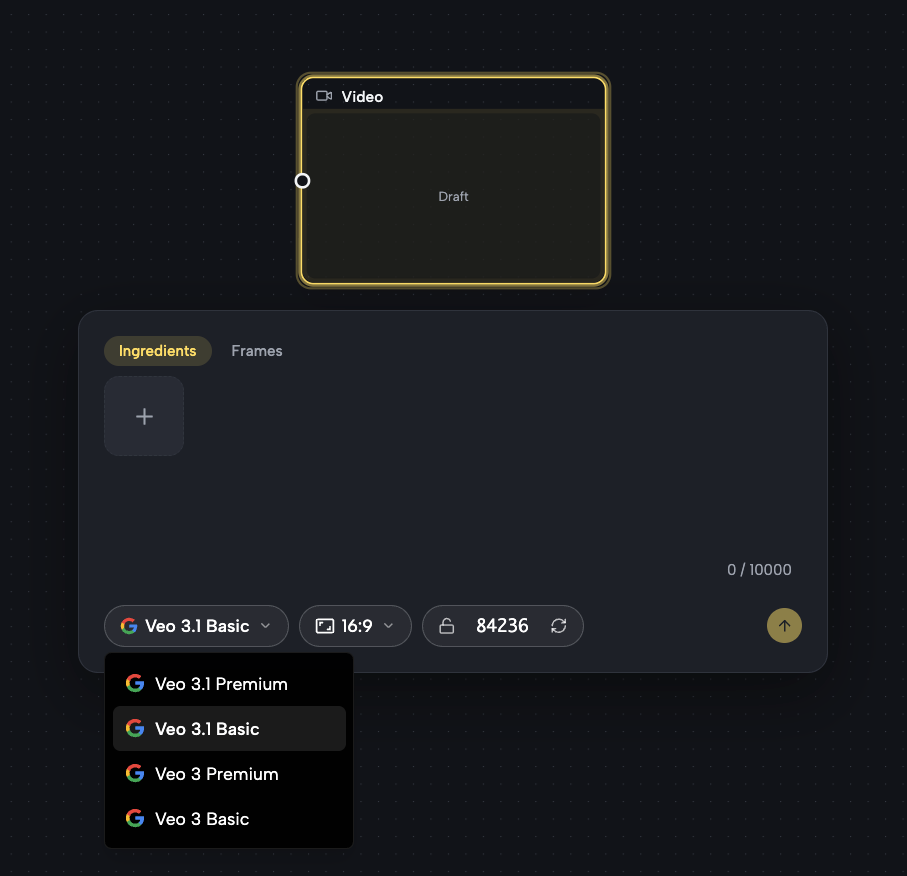
AI Video Generation with Veo 3 & Veo 3.1
Create AI-powered videos directly within your canvas workflow. Veo 3.1 Premium and Basic models generate high-quality video from text descriptions or reference images. Select 16:9 or 9:16 aspect ratios for landscape or portrait content. Connect an Image node to a Video node to use your AI-generated artwork as a starting frame—true visual workflow power.
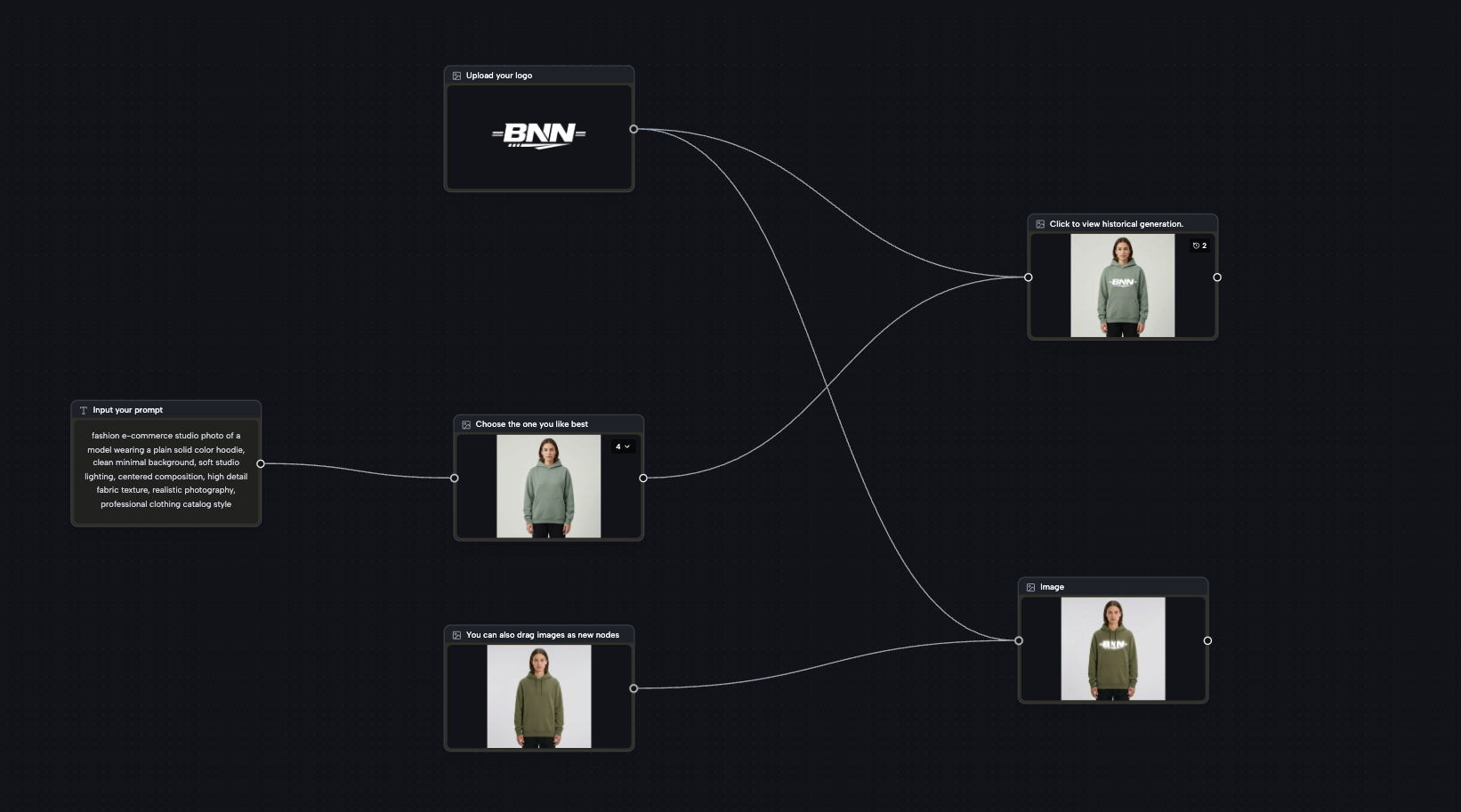
Smart Node Connections & Creative Pipelines
Drag from one node's output handle to another's input to establish dependencies. Text nodes feed prompts, Image nodes provide reference visuals, and Video nodes receive both. The system validates connections automatically—ensuring compatible inputs and preventing errors. Build complex multi-step workflows like Text-to-Image-to-Video pipelines with simple drag-and-drop.
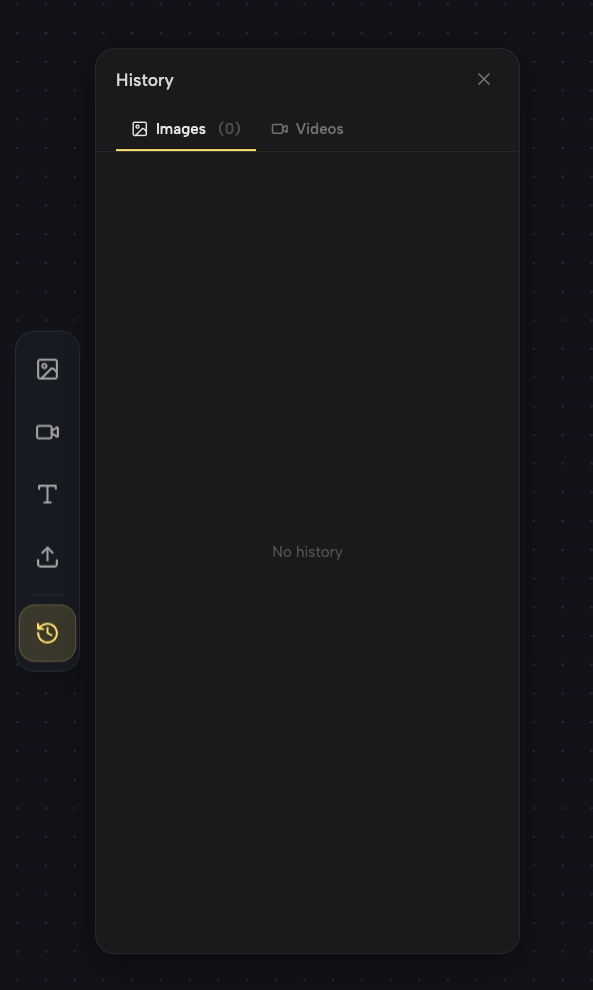
Project Management with Auto-Save & Version History
Every change is auto-saved in real time—never lose your work. Browse your generation history by Images and Videos in the dedicated History panel. Each project tracks all nodes, connections, and outputs. Undo and redo freely with full confidence. Create, rename, and manage multiple projects from the dashboard with thumbnail previews and timestamps.
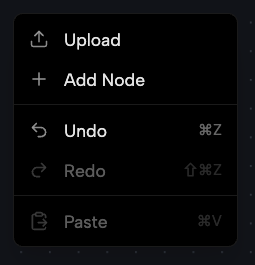
Rich Interaction: Context Menus, Keyboard Shortcuts & Batch Operations
Right-click the canvas for quick actions: Add Node, Upload, Undo, Redo, Paste. Right-click any node for Copy, Paste, Delete. Use keyboard shortcuts—Cmd/Ctrl+Z for undo, Cmd/Ctrl+C to copy, Delete to remove. Generate batch variations, duplicate nodes, derive new nodes from existing results, and navigate with trackpad or mouse. Professional-grade tools designed for creative speed.
Frequently Asked Questions About Banana Pro AI Studio
Banana Pro AI Studio is a free visual workflow canvas for AI content creation. It lets you generate images and videos using multiple AI models, all organized on an infinite, zoomable canvas.
Here's how it works:
- Create a project to open your personal canvas workspace
- Add nodes—Image, Video, Text, or Upload—by clicking or dragging from the sidebar
- Connect nodes by dragging between handles to build creative pipelines (e.g., Text → Image → Video)
- Hit Generate on any node to produce AI content in seconds
- Preview, iterate, and export—all within the same workspace
Everything is auto-saved in real time. The node-based visual approach makes complex AI workflows intuitive and accessible, whether you're a beginner or a professional creator.
Yes! Banana Pro AI Studio is free to use with your Banana Pro AI account. Sign up free—no credit card required—and receive daily credits for AI image and video generation.
Free accounts include: • Full access to the infinite canvas and node-based workflow • 9+ AI image models (Nano Banana Pro, Z-Image Turbo, GPT-4o Image, Flux Kontext, and more) • AI video generation with Veo 3 and Veo 3.1 models • Unlimited projects with auto-save • Generation history and version tracking • High-resolution exports without watermarks • All aspect ratios and batch generation features
Premium plans offer additional credits and priority processing for power users. But the free tier provides robust capabilities for most creative projects.
Banana Pro AI Studio provides access to a wide range of cutting-edge AI models:
Image Generation Models: • Nano Banana Pro — High-quality generation with reference image support • Nano Banana — Fast generation with image input support • Z-Image Turbo — Ultra-fast text-to-image generation • GPT-4o Image — OpenAI's latest image generation model • Flux Kontext Pro & Max — Advanced style transfer and image editing • Qwen Image Edit — Precise image editing and transformation • Grok Imagine — Creative image generation with reference support • Seedream — High-fidelity artistic image generation
Video Generation Models: • Veo 3.1 Premium — Top-tier video quality with image-to-video support • Veo 3.1 Basic — High-quality video at lower credit cost • Veo 3 Premium — Advanced video generation • Veo 3 Basic — Accessible video creation
All models are available directly on the canvas. Simply select your preferred model from the node's dropdown menu.
Node connections are the core of Banana Pro AI Studio's visual workflow system. Here's how they work:
• Every node has input and output handles (the small circles on the left and right edges) • Drag from an output handle to an input handle to create a connection • Text nodes provide prompts to Image or Video nodes • Image nodes can feed reference images to other Image or Video nodes • The system validates connections automatically—it won't allow incompatible connections
Example workflows: • Text → Image: Write a prompt, generate an image • Image → Image: Use one generated image as reference for another generation • Text → Image → Video: Generate an image from text, then use it as a video starting frame • Upload → Image: Upload your own photo, then transform it with AI
This visual pipeline approach lets you build complex creative workflows without any coding or technical setup.
Yes! Banana Pro AI Studio supports batch generation for rapid creative exploration.
Batch generation features: • Generate up to 4 variations per image node in a single click • Each variation uses the same prompt but produces unique results • Expand the batch to view all variations side by side on the canvas • Set any variation as the primary result with one click • Drag individual variations to create new standalone nodes
Batch generation is perfect for exploring different visual directions quickly. Combined with the 'Based on This' feature (which creates a new node derived from an existing result), you can iterate rapidly until you find the perfect creative direction.
Banana Pro AI Studio uses a robust dual-layer auto-save system to ensure you never lose work:
• Local-first saving: Changes are saved to your browser instantly for immediate protection • Cloud sync: Your canvas is automatically synced to secure cloud storage in the background • Conflict resolution: If local and cloud versions differ, the system uses the most recent version • Offline support: Even if you lose internet, your changes are preserved locally and synced when you reconnect
Additionally: • Full undo/redo history lets you reverse any action • Generation history tracks every image and video you've created • Project dashboard shows all your projects with timestamps and thumbnails
Your creative work is protected at every step—just focus on creating.
Banana Pro AI Studio includes comprehensive keyboard shortcuts for efficient creative workflows:
Navigation: • Scroll wheel / Pinch — Zoom in and out • Left-button drag / Two-finger slide — Pan the canvas
Basic Shortcuts: • Cmd/Ctrl + C — Copy selected node • Cmd/Ctrl + V — Paste • Delete/Backspace — Delete selected node • Cmd/Ctrl + Z — Undo • Shift + Cmd/Ctrl + Z — Redo
Right-click context menus provide additional quick actions for both the canvas background and individual nodes. These shortcuts are designed to match familiar creative tool conventions, so you can work at full speed from day one.
Yes! All images and videos generated in Banana Pro AI Studio can be used for commercial purposes.
Commercial usage includes: • Marketing materials and advertising campaigns • Social media content for brands and businesses • Website graphics, banners, and product visuals • Client projects and agency deliverables • E-commerce product imagery • Print materials, merchandise, and packaging
All exports are high-resolution and watermark-free. You maintain full ownership of your AI-generated content. Banana Pro AI Studio empowers creators and businesses with real commercial freedom—sign up free and start building your visual portfolio today.
Start Building Your AI Creative Workflow Today — Free
Join thousands of creators, designers, and teams using Banana Pro AI Studio's free visual workflow canvas. Generate stunning AI images and videos, connect nodes into creative pipelines, and manage your projects—all in one powerful workspace. Sign up free, no credit card required.