More AI Image Generators
Explore our collection of specialized AI image generators designed for different creative needs and styles












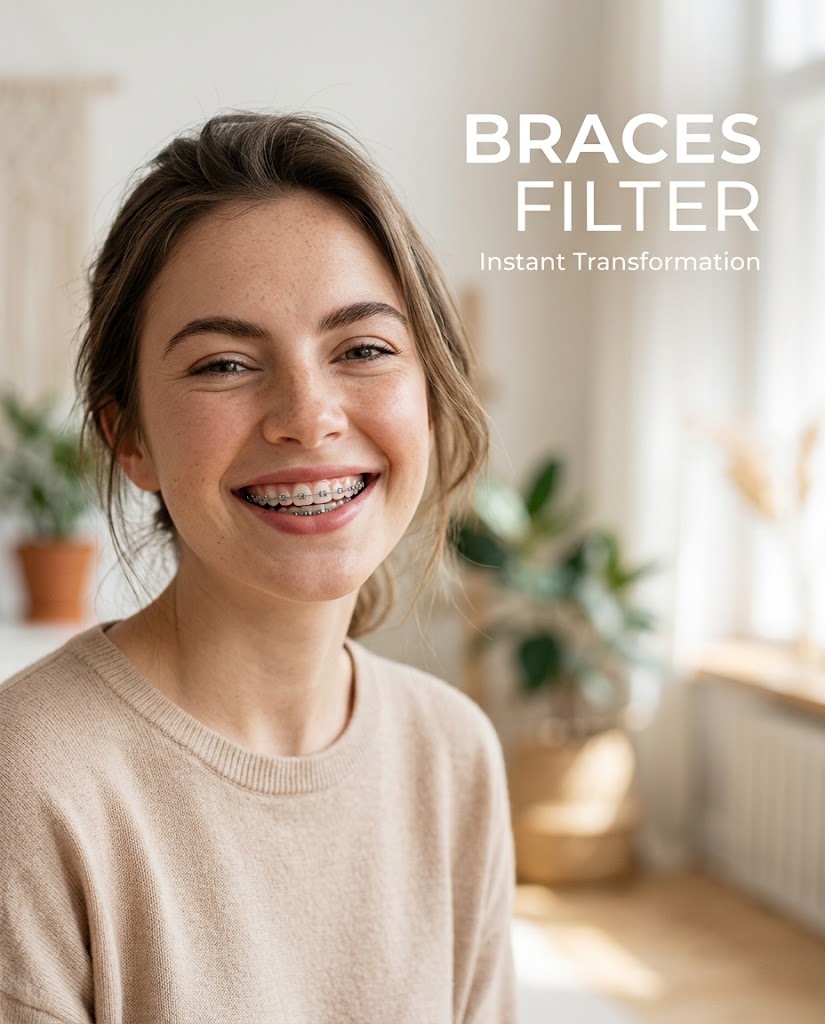
Add Natural Braces to Portraits with AI Braces Filter
Upload a photo and use Braces Filter to place realistic braces on teeth.
AI Braces Filter helps you preview a believable orthodontic look without changing the rest of the image. Whether you want a casual social post, a fun before-and-after concept, or a polished visual mockup, this Braces Filter keeps the edit simple and easy to use.
How to Use Braces Filter
Using the Braces Filter is straightforward even if you have never edited portraits before. The workflow is built for fast experimentation, so you can test different photos and keep the result that looks the most believable.

Upload Your Portrait
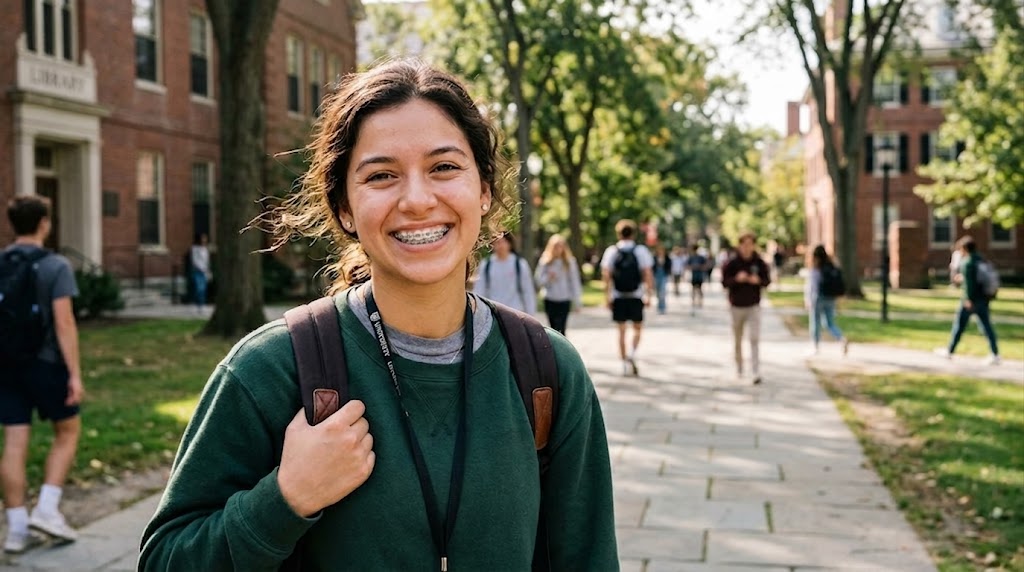
Start by uploading a clear image of one or more people. The Braces Filter works best when teeth are visible and the face is well lit. You can use selfies, smiling portraits, couple photos, or casual lifestyle images. A clean source photo helps the Braces Filter place braces more naturally along the teeth line.

Choose Image Size and Generate
Select the image ratio or size you need, then let the Braces Filter process the photo. The tool analyzes the mouth area and adds a realistic braces look that fits the person’s smile, angle, and facial proportions. This AI Braces Filter is designed to make the result look intentional.

Preview and Download the Result
Review the final image and download it when the braces placement looks right for your use case. The Braces Filter is useful for playful edits and shareable social content. In just a few steps, the Braces Filter turns a regular smiling portrait into a more distinctive version.
Best AI Image Tools for Creative Projects
Explore creative tools for image, learn tips and tricks, and see how AI can be your assistant in turning concepts into finished projects.






Features of Braces Filter
The Braces Filter is designed for users who want a believable braces effect without learning complex editing software. From realistic smile alignment to preservation of the original portrait style, each feature supports a cleaner and more usable result.
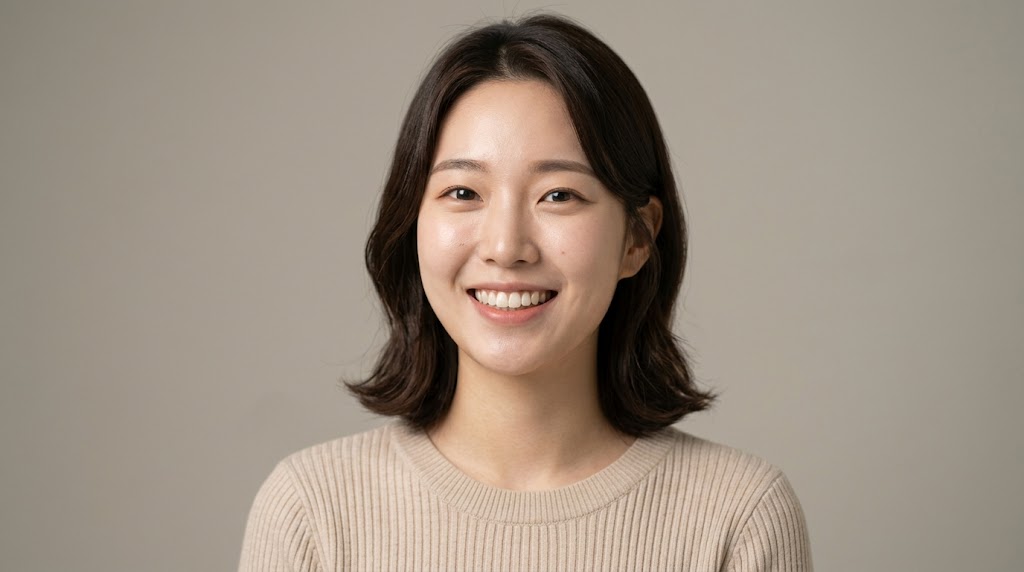
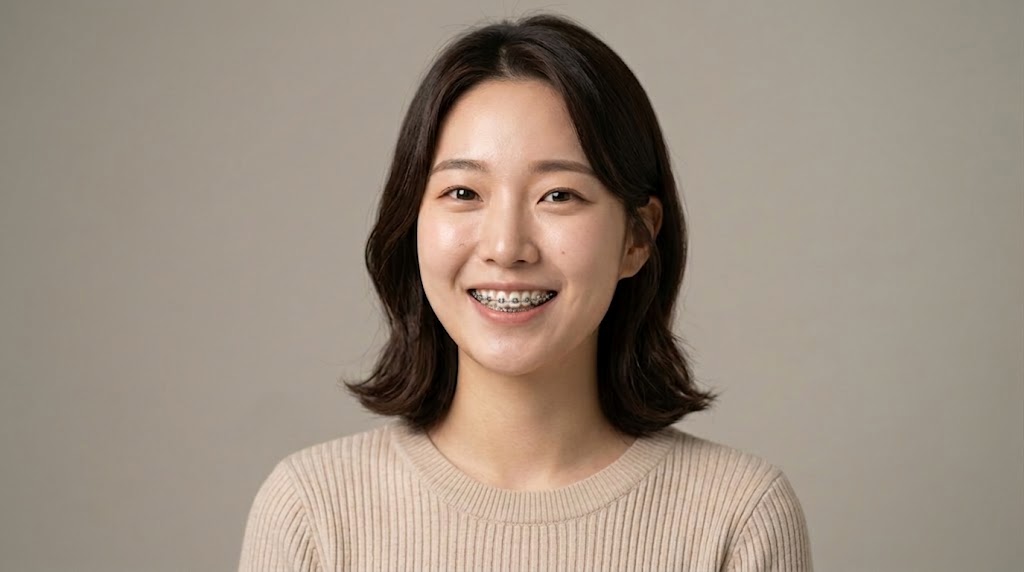
Realistic Braces Placement That Follows the Smile
The Braces Filter is built to place braces where viewers expect them to sit, aligned with visible teeth and the shape of the smile. Instead of creating a flat overlay, the Braces Filter aims for a result that fits facial angle, mouth opening, and tooth exposure. That makes it useful for profile content, visual mockups, and playful edits that still feel visually credible.


Designed for Selfies, Portraits, and Social Content
A good Braces Filter should work across everyday photos, not just studio images. This Braces Filter can be used for selfies, headshots, couple pictures, and smiling group shots where the teeth are visible. If you want an AI Braces Filter for content creation, profile experiments, or themed posts, this tool supports a wide range of natural portrait scenarios.
Keeps the Original Photo Style Intact
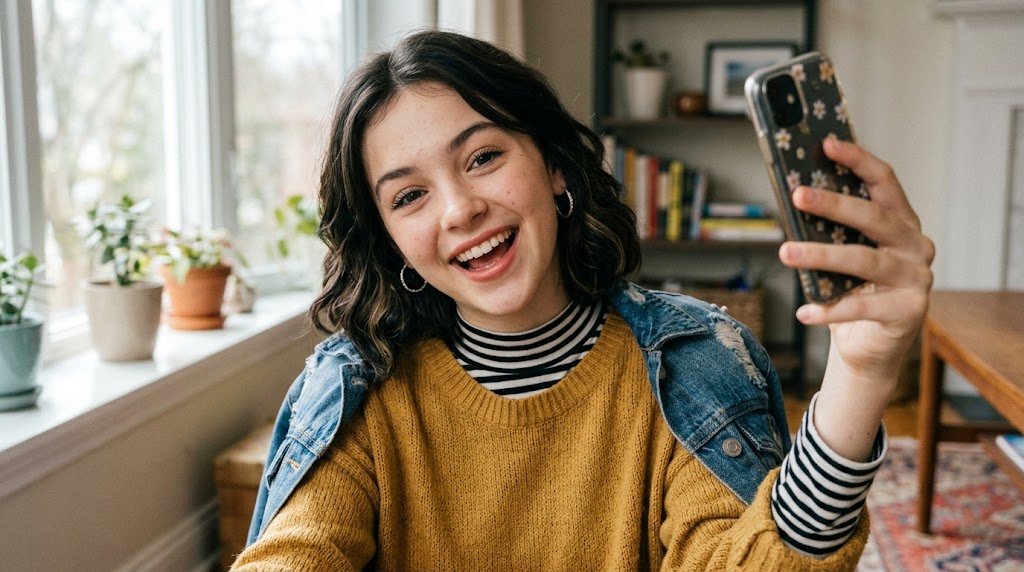
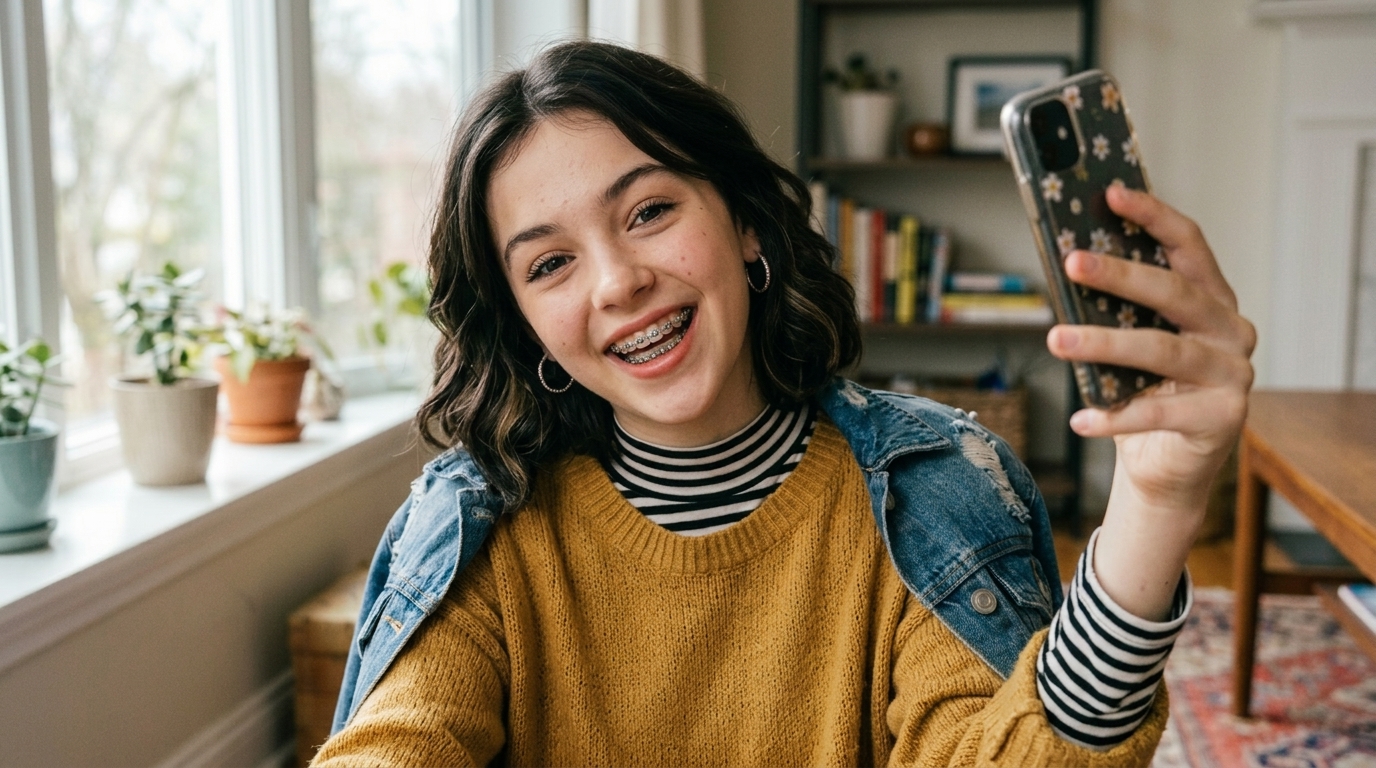
The best Braces Filter should add detail without making the rest of the image look edited. Our Braces Filter focuses on the teeth area while preserving expression, skin texture, makeup, lighting, hairstyle, and composition. That makes the final photo easier to share because the braces effect feels integrated into the original shot rather than visually disconnected from it.
Fast Visual Mockups for Style Exploration
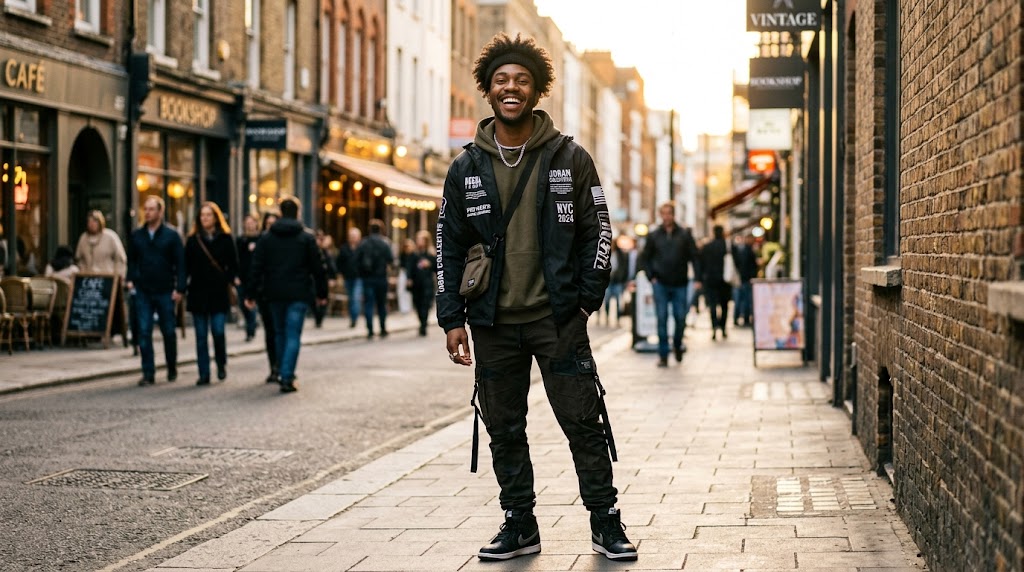
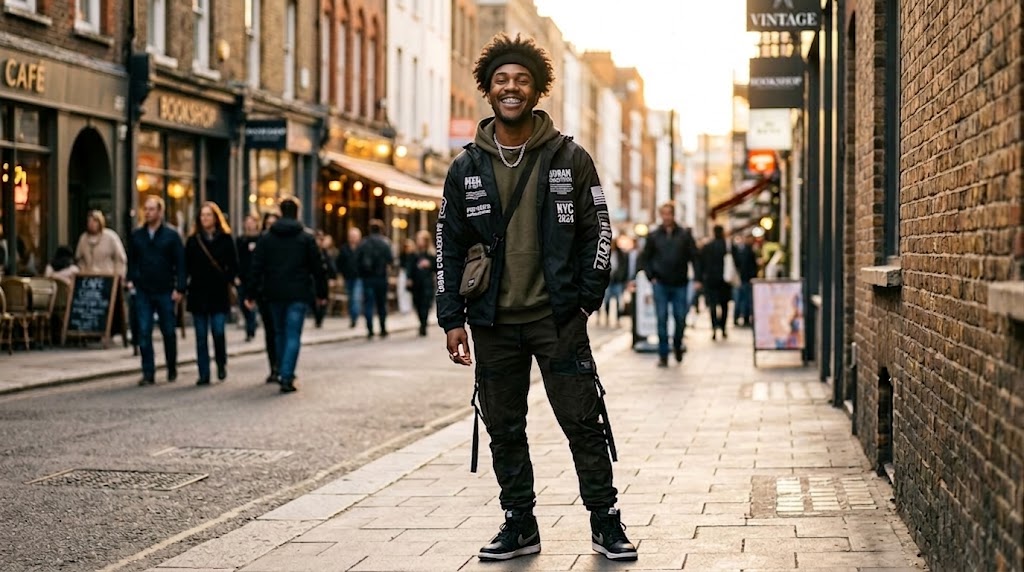
Sometimes you do not need advanced retouching software. You just want to see how braces might change the personality of a photo. The Braces Filter gives you a quick way to test that idea. Whether you are building social visuals, making creative edits, or trying an AI Braces Filter for fun, the process is fast and easy to repeat across different images.
Why Choose Braces Filter
There are many portrait tools online, but a focused Braces Filter solves a specific editing need with less friction. It gives you a believable braces effect, preserves the photo’s original feel, and works well for different portrait types.

Preview a Braces Look Before Sharing a Style Concept
The Braces Filter is useful when you want to visualize how braces can change the overall character of a smile. Instead of imagining the result, you can create a quick image preview and compare it with the original. This makes the Braces Filter helpful for playful concept testing, personal styling references, and creative moodboard content.

Create Social Media Photos with More Personality
A simple portrait can feel more memorable when it has a small visual twist. The Braces Filter lets creators make selfies and profile pictures look more distinctive without rebuilding the entire image. If you need an AI Braces Filter for posts, reels covers, or casual personal branding visuals, this workflow keeps the edit light and easy to share.

Make Before and After Concepts for Content
The Braces Filter works well for side-by-side concepts where you want to show the difference between an original smile and an edited version. Content creators often use these visual comparisons because they are easy to understand at a glance. A clean Braces Filter result helps the comparison feel intentional, balanced, and more credible to viewers.

Edit Couple and Group Photos with Visible Smiles
The Braces Filter is not limited to solo selfies. It can also be useful for couple images and group shots where one person’s smile is clearly visible. When the teeth area is readable, the Braces Filter can add a natural braces effect while keeping the rest of the image composition intact, which is important for more social and candid photos.

Build Character-Inspired Portrait Edits
Some users want braces because it changes the vibe of a portrait and gives the subject a slightly different identity. The Braces Filter supports that kind of character-based edit without requiring a full transformation. You can keep the original face, outfit, and mood, while using the Braces Filter to introduce one distinct visual element that changes the story of the image.

Use a Quick Online Workflow Without Complicated Retouching
Traditional portrait editing often takes too long for lightweight ideas. The Braces Filter offers a simpler route: upload, choose a size, and generate. For users who want an AI Braces Filter without spending time learning manual dental retouching, this approach is more efficient and easier to repeat across multiple images in one session.
What Users Say About Braces Filter
People use the Braces Filter for creative portraits, social content, quick visual mockups, and playful before-and-after ideas. The feedback is consistent: users want the braces to look believable, the workflow to stay simple, and the rest of the image to remain untouched.
I used the Braces Filter on a few smiling selfies for a social post idea, and the result looked much more natural than I expected. The braces followed the smile well and did not make the rest of the image look overedited. I liked that the face still felt like my original photo, just with a believable extra detail added to it.
Most tools that try this kind of edit end up looking pasted on, but this Braces Filter handled the mouth area with much better balance. I tested it on profile photos and casual portraits, and the results stayed consistent. It is useful when you want a quick visual concept without opening complex editing software or doing manual retouching.
I wanted an AI Braces Filter for a before-and-after content idea and this one gave me a cleaner result than the other tools I tried. It kept the expression, skin, and lighting intact while changing only what needed to change. That made the photo easier to post because it still looked like a normal portrait, not a heavy edit.
I tested the Braces Filter on a couple photo where one person had a broad smile, and it handled the edit surprisingly well. The braces placement matched the visible teeth and did not distract from the rest of the image. For quick concept work and playful portrait variations, this Braces Filter has become part of my regular workflow.
What I appreciate most about the Braces Filter is that it does one job clearly and keeps the process simple. I upload the image, choose the size, and get a version that looks realistic enough to use for references and content drafts. It saves time compared with manual editing, especially when I want to test several photos quickly.
I needed an AI Braces Filter for a creative portrait series and was mainly worried about consistency. This tool kept the braces effect aligned with the smile and did not distort the rest of the face. It felt reliable across different image sizes, which matters when you are preparing multiple visuals for social media and landing page content.

Frequently Asked Questions About Braces Filter
These answers cover the most common questions people ask before trying a Braces Filter online. If you want a cleaner sense of what the Braces Filter can do, the FAQ gives you that context.
A Braces Filter is an image editing tool that adds a realistic braces effect to the teeth in a portrait or selfie. Instead of changing the whole image, the Braces Filter focuses on the smile area and tries to keep the person’s expression, lighting, and facial details consistent. It is useful for style previews, social media content, playful edits, and visual concepts where you want to see how braces might look in a photo without manual retouching.
The AI Braces Filter analyzes the visible teeth and mouth area in your uploaded image, then generates a braces effect that follows the smile as naturally as possible. After you choose an image size, the tool processes the photo and creates a new version with braces integrated into the portrait. A strong source image helps a lot. Clear lighting, a visible smile, and decent resolution usually make the AI Braces Filter perform more consistently and produce a cleaner final result.
The Braces Filter works best on photos where the person is smiling and the teeth are clearly visible. Front-facing selfies, portraits, couple photos, and lifestyle pictures with good lighting usually produce the most natural result. If the mouth is fully closed, heavily shadowed, or partly blocked by hands, hair, or objects, the Braces Filter may have less information to work with. Choosing a sharper image gives the tool a better foundation for more believable braces placement.
The goal of the Braces Filter is to add braces while preserving the rest of the image. In most cases, the tool keeps facial expression, skin texture, makeup, hairstyle, clothing, and background consistent with the original photo. That is important because a good Braces Filter should feel like a targeted edit, not a full portrait transformation. While results vary by image quality and angle, the workflow is designed to keep unnecessary changes to a minimum and maintain the original look.
Yes. The Braces Filter is a good fit for social media because it creates an instantly recognizable change without requiring a complicated edit. Many users apply the Braces Filter to profile pictures, portrait posts, cover images, and before-and-after concepts for short-form content. Since the overall photo remains familiar, the braces effect becomes the main point of interest. That makes the image easier to understand quickly, which is useful on fast-moving platforms where visual clarity matters.
No. Although selfies are a common use case, the AI Braces Filter can also work on portraits, couple images, and some group photos where the target person’s smile is clearly visible. The key factor is not the photo category but the visibility of the teeth and mouth area. If the facial angle is reasonable and the smile is readable, the AI Braces Filter can usually produce a more usable effect. Clearer inputs generally lead to more natural-looking outputs.
Absolutely. Many people use the Braces Filter for playful edits, creative concepts, and quick appearance mockups rather than serious retouching. It is a convenient way to explore how one detail can change the tone of a portrait. The Braces Filter is especially useful when you want a fast visual result for moodboards, content drafts, character-inspired edits, or casual image experiments. Because the workflow is simple, you can test several photos and compare the outcomes in a short session.
Manual editing takes much more time and usually requires detailed masking, positioning, lighting adjustments, and patience. An AI Braces Filter simplifies that process by handling the braces placement for you in a few steps. For most users, that means faster experimentation and less technical effort. If your goal is to create a believable result for content, mockups, or casual sharing, an AI Braces Filter offers a practical shortcut. It is especially useful when you need multiple edited portraits quickly.
Yes, image size can matter because different outputs are useful for different platforms and layouts. When you use the Braces Filter, choosing the right image ratio helps you prepare a result that already fits your intended use, whether that is a square post, vertical story, or standard portrait format. The braces effect itself is the main visual edit, but output sizing improves workflow efficiency. It saves time later because you do not need to reformat the final image separately.
A Braces Filter works well for creative assets because it produces a clear, easy-to-notice visual change while keeping the original portrait recognizable. That makes it useful for demonstrations, comparison graphics, landing page examples, and feature-focused content. Viewers can immediately understand what the edit does, which is valuable in product marketing and social visuals. A practical Braces Filter also reduces production friction, since teams can create multiple examples quickly without building every braces mockup from scratch.
Try the Braces Filter on Your Photo
Upload a portrait, choose your preferred image size, and create a realistic braces edit in seconds. Whether you want a quick mockup, a social media visual, or a playful portrait variation, our Braces Filter gives you a simple way to generate a clean and believable result.